Wonda skills & prompt guide
Last updated: September 4, 2026
This article covers what Wonda can do and how to write prompts that get the best results.
Enabling Wonda V2
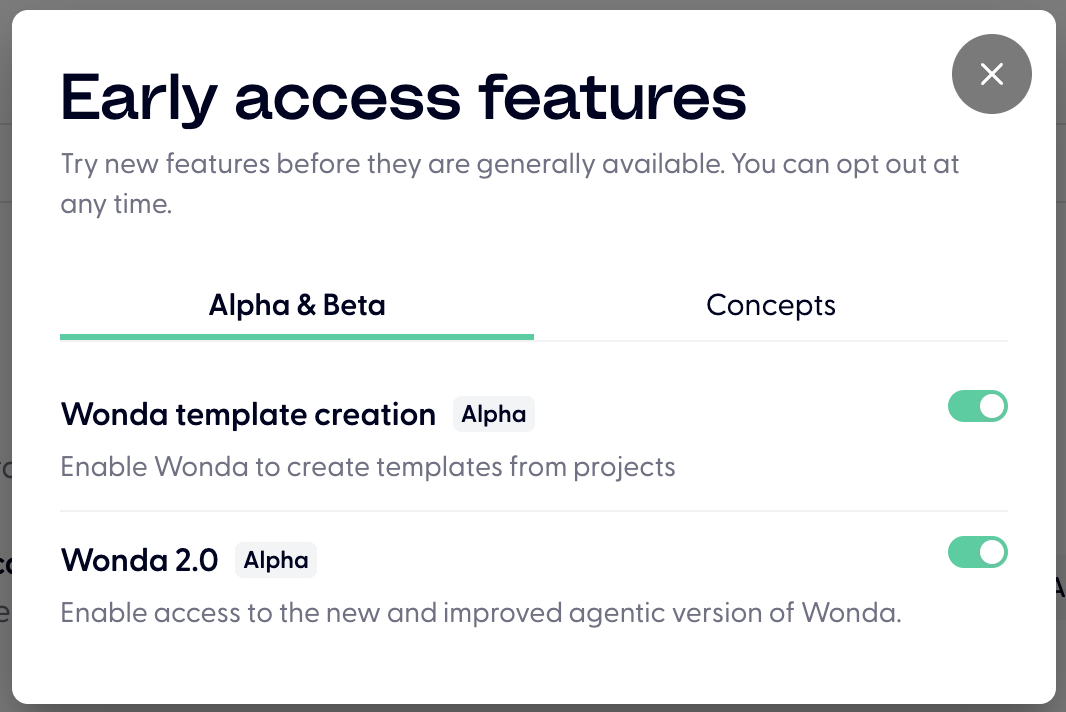
To access Wonda V2's enhanced video creation capabilities, you need to opt‑in to the beta:
My Profile → Early access features
Enable Wonda 2.0
Getting Started
To use Wonda, click the W icon in the left panel of your Wondercraft workspace. This opens the Wonda chat interface where you can send any of the prompts and requests described in this guide.
What Wonda can do
Wonda V2:
Supports both specific clip edits as well as project-level actions
Can work with both uploaded assets (files, images, videos, audio clips, etc) and generate new assets using AI
Wonda V2 supports both specific clip edits as well as project-level actions. Be specific about any edits you are thinking of, and Wonda V2 will be able to deliver.
Script & audio
Generate a full script from a topic, brief, or attachment
Edit your uploaded audio clip
Rewrite, expand, shorten, or reformat script clips
Add or remove clips
Assign or change voices on clips
Add music tracks and sound effects
Adjust speech speed and volume
etc.
Video & visuals (video projects only)
Generate a full video from a topic, brief, or attachment
Edit your uploaded video clip
Use your uploaded images and videos as b-roll in the video Wonda creates
Add or replace avatars on individual clips
Add captions and adjust their style, position, and timing
Add and edit visual elements: images, uploaded video clips, text overlays, shapes
Change fonts/text sizes of on-screen texts
etc.
Project-level actions
Translate the project into another language
Add pauses
Realign visual clips with new VO generated from new voice
Make changes to the visual style ("Make it more realistic/animated", "Use the uploaded brand kit")
etc.
Prompt tips
Be specific
Tell Wonda exactly what you are looking to change. If your instruction is vague, Wonda should be smart enough to ask follow up questions, but could misunderstand what you are looking for as well.
Chain instructions for better control
Break large requests into stages if you want more control at each step.
1. "Write a draft script for a 60-second ad about our new product."
2. [Review the draft] "Good. Now assign a calm, confident male voice to all clips."
3. [Review voices] "Add background music. Keep it subtle."
Use custom instructions for repeated instructions
Save the instructions that apply to every project (e.g. brand kit, tone, style, and other instructions) under Custom instructions. This saves you from repeating context in every message.