How to add custom instructions
Last updated: August 10, 2026
Use Wonda Custom Instructions to save your preferences and apply them automatically to every generation. Set them once and Wonda remembers your style.
What are custom instructions?
Custom instructions are Wonda instructions that you don't need to repeat. Wonda will automatically apply these to all your generations. Instead of repeating "use the brand kit from the company Wondercraft: https://www.wondercraft.ai/" or "the style should be professional and not too conversational" in every prompt, you set them once and Wonda uses them automatically.
How to set custom instructions
Note: You must have opted into Wonda V6 to access custom instructions.
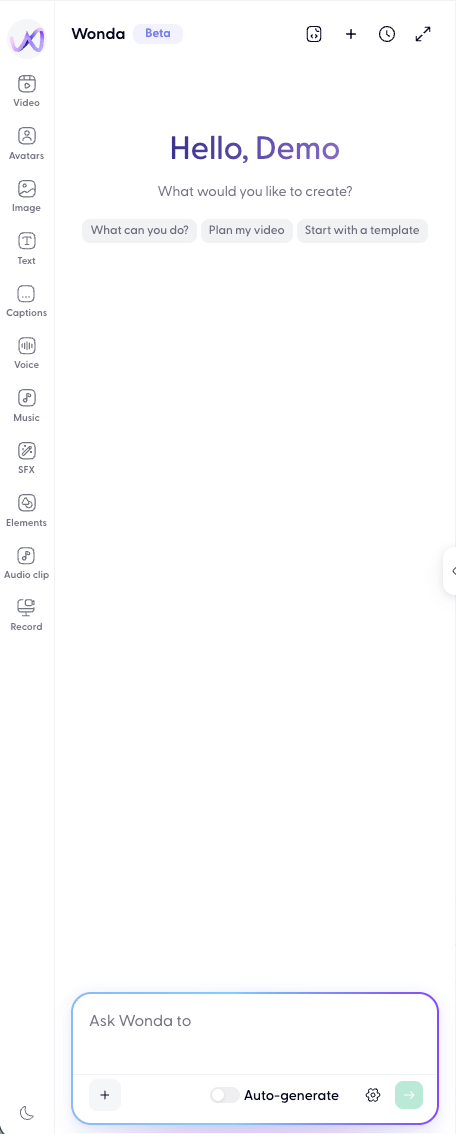
Open the Wonda panel from left side of the editor.
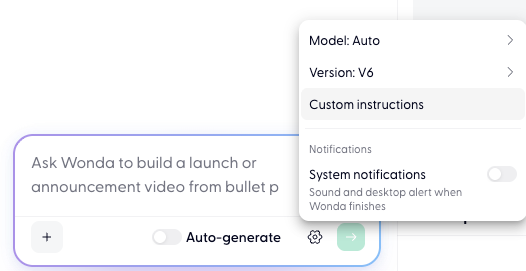
Click the Settings icon (gear icon) at the bottom right of the Wonda panel
Select Custom Instructions
Enter your preferences in plain language

Click Save
You can edit the custom instructions whenever.
Examples of good custom instructions
Good custom instructions capture how you want every script to sound and read. Here are examples:
Brand voice: "Write in a friendly, conversational tone. Use simple language and avoid jargon."
Tone and style: "Make the tone of the script punchy and energetic. Include clear calls-to-action."
Language and formality: "Use British English spelling. Avoid formal or corporate language."
Target audience: "All scripts should be suitable for young professionals aged 25-30."
Format preference: "Always include an intro hook and a summary at the end. The intro should always be "Welcome back. Today we'll talk about...""
Compliance: "Never mention competitors by name. Always include a disclaimer if relevant."
Suggested instructions
As you use Wonda, it may notice patterns in your prompts and suggest saving them as custom instructions. You might see an "Add to instructions" card after generating scripts.
For example, if you frequently ask Wonda to "make it funny" or "keep it professional," Wonda will suggest saving these preferences. Review suggestions and click "Add" if they match your style.