Select an AI voice
Last updated: April 16, 2026
This article covers how to browse, preview, and pick a voice for your clips - whether from Wondercraft's built-in library or from voices you've created yourself.
Voice tab
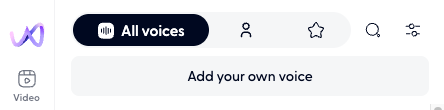
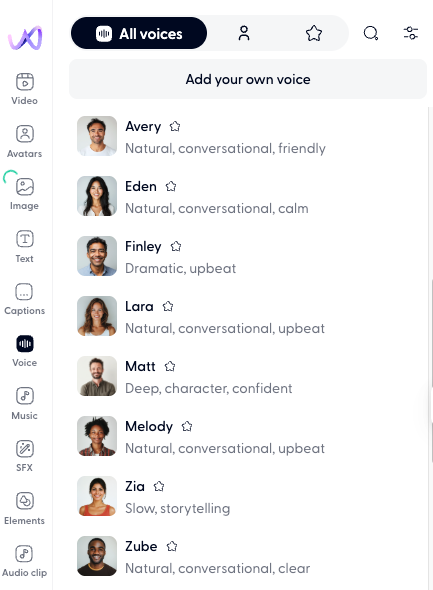
Open the Voice tab by clicking the voice icon in the left panel of the editor. The tab has four sub-tabs across the top:
All voices - shows every voice available to you: your custom voices listed first, followed by the full library
My voices (person icon) - shows only voices you've created or cloned
Favorites (star icon) - shows voices you've starred for quick access
Search (magnifying glass) - lets you search voices by name or voice characteristics like language, accent, gender, style etc.
Library voices
Wondercraft's voice library includes hundreds of AI voices with different accents, tones, and styles.
To preview a voice, hover over the voice picture and click the play button. This plays a short sample so you can hear the voice before committing.
To add a voice to favorites, click the star icon next to the voice name. Favorited voices appear in the Favorites tab for faster access in future sessions.
To use a library voice on a new clip, click the voice in the left panel. This adds a new speech clip to your timeline using that voice.
Important: Clicking a voice in the left panel adds a new clip rather than changing the voice on an existing clip. To change the voice on an existing clip, use the clip toolbar instead.
Your AI voices
Voices you've created via Clone, Design/Prompt, Speak like, or Import PVC appear at the top of the "All voices" list and are always available in the "My voices" tab. Custom voices work exactly like library voices - you can preview them, favorite them, and use them on any clip.
Custom voices are tied to your workspace, so all team members with access to the workspace can use them.
To learn how to create a custom voice, see 📄 Create an AI voice.
Using filters to find the right voice
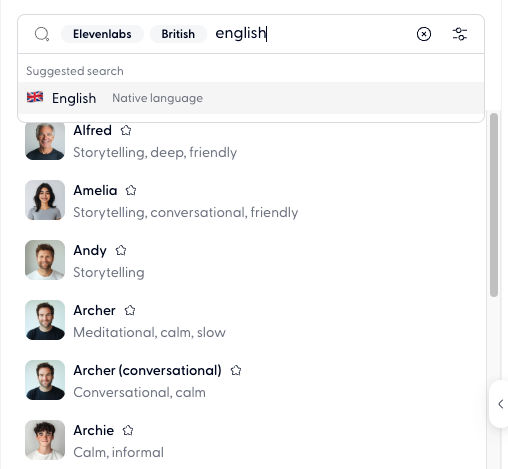
Click the Search icon at the top of the Voice tab to narrow results by language, accent, tone, gender, and voice model provider.
Combine filters to quickly find a voice that matches your project needs. For example, filtering for "Elevenlabs + British + English" narrows the list to voices with stable British English voices powered by Elevenlabs.
Asking Wonda to suggest a voice
You can also ask Wonda to help you find a voice. Try prompts like:
"Find me a warm British male voice for a documentary"
"What voices would work for a tech podcast?"
"Suggest a calm, professional voice for an explainer video"
Wonda will recommend voices from the library or suggest creating a custom one if nothing matches.
Voice models and performance
Wondercraft imported library voices from Elevenlabs and Google Gemini.
Elevenlabs voices:
These voices are stable, and have a consistent accent throughout. For example, Abby will be an excited American English voice in every generation.
However, sometimes these voices can be flat and robotic.
Google Gemini voices:
These voices are natural and flexible, meaning they are very conversational and has the ability to interpret the emotion of the script. For example, Avery can sound sad saying "I can't believe we lost the chance forever.", and sound happy saying "Oh my God, what an excellent surprise!"
That said, because of this flexibility and the emotional range of the Gemini voices, these voices can sound unstable, meaning sometimes sounding like two different people in two different generations.
For stability and accent consistency - go for Elevenlabs voices. For promptability and the wild range of emotions - go for Google Gemini voices.