Advanced AI voice performance controls
Last updated: August 4, 2026
This article covers three ways to fine-tune how an AI voice performs your script: inline prompts for quick direction, Director Mode for iterative clip-level refinement, and Parrot Mode for cloning your own delivery style.
Note that Director Mode and Parrot Mode are features available to our Pro and Enterprise users.
Voice model configuration (Elevenlabs only)
You can select the model used for Elevenlabs-powered voices.
Changing the model used for any speech clip configures it for all the speech clips for this speaker. If you have two speakers, please change the model twice, once for each voice.
Click to select any speech clip on the timeline of the editor, or click on a paragraph in the script.
Click the model dropdown (shows the current model name, e.g. "Auto").
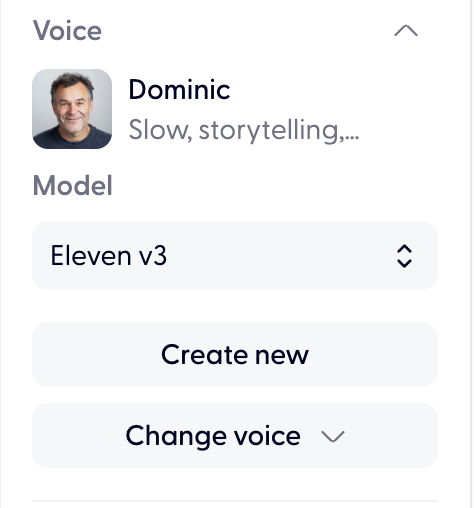
Select a different model from the list.
Generate audio — the new model will be used for all subsequent generations with this voice.
Inline prompts
Inline prompts (also called audio tags) let you add performance direction directly in your script using square brackets. They can change emotion, pace, emphasis, delivery style, or add non-verbal sounds for a specific line or part of a line.
Note that inline prompts are supported by:
Google Gemini TTS
ElevenLabs v3
Other voice models may read bracketed instructions aloud as script text
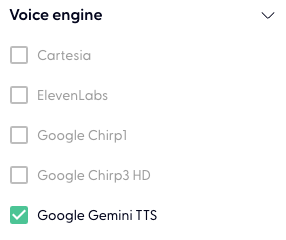
You can filter for "Google Gemini TTS" in the Voice search bar:
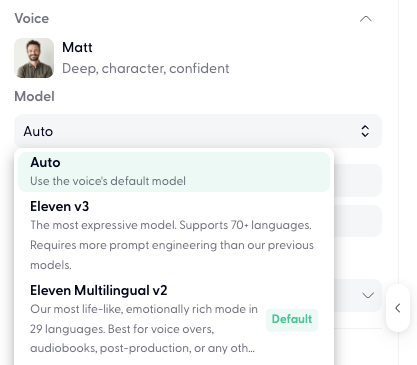
Or choose ElevenLabs voice and select Eleven V3 as model:
How to use inline prompts:
Open the script for any production.
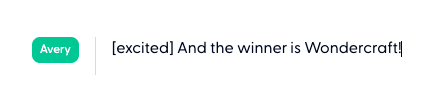
Add your direction in square brackets, immediately before the line or phrase it should affect. For example:
[excited] And the winner is Wondercraft!I thought it was over… [whispers] but we did it![laugh] I can't believe that actually worked.
Click Generate to hear the result.
What you can prompt:
Try short, natural descriptions. Results vary by voice and model, so regenerate(you have 2 times free regenerations) or adjust the wording if needed.
Emotion and delivery:
[excited],[sarcastic],[curious],[serious],[whispers],[shouting]Pace:
[very fast],[very slow],[slowly]Non-verbal sounds:
[laughs],[giggles],[sighs],[gasp],[cough]Emphasis:
[emphasize "Wondercraft"],[stress the last word]Accent/style:
[British accent],[speak like a news anchor](Gemini TTS only)
Inline prompts are the fastest way to adjust delivery without leaving the script editor. For more complex, iterative refinements, use Director Mode.
Gemini TTS tips
Gemini supports tags at the start of a line or within it, so you can change delivery mid-sentence. Use English tags even when the script is in another language. Gemini does not provide a fixed list of supported tags—experiment with natural descriptions to find the result you want. Google Gemini TTS audio-tag guidance
ElevenLabs v3 tips
Audio tags work with ElevenLabs v3. Choose a voice that already suits the intended performance: a tag can guide a voice, but it cannot reliably turn a naturally quiet voice into a convincing shout. Tags are experimental and can vary by voice, so test before relying on a result in production. Punctuation also helps: ellipses add pauses, while capitalization adds emphasis. ElevenLabs v3 audio-tag guidance
Troubleshooting common inline prompt issues
Inline instructions are read out loud word by word
The selected voice model may not support audio tags. Inline prompts work with Google Gemini TTS and ElevenLabs v3; other models can treat bracketed text as regular script copy.
If you are using a supported model, regenerate the audio and try a shorter or more specific tag.
Director Mode
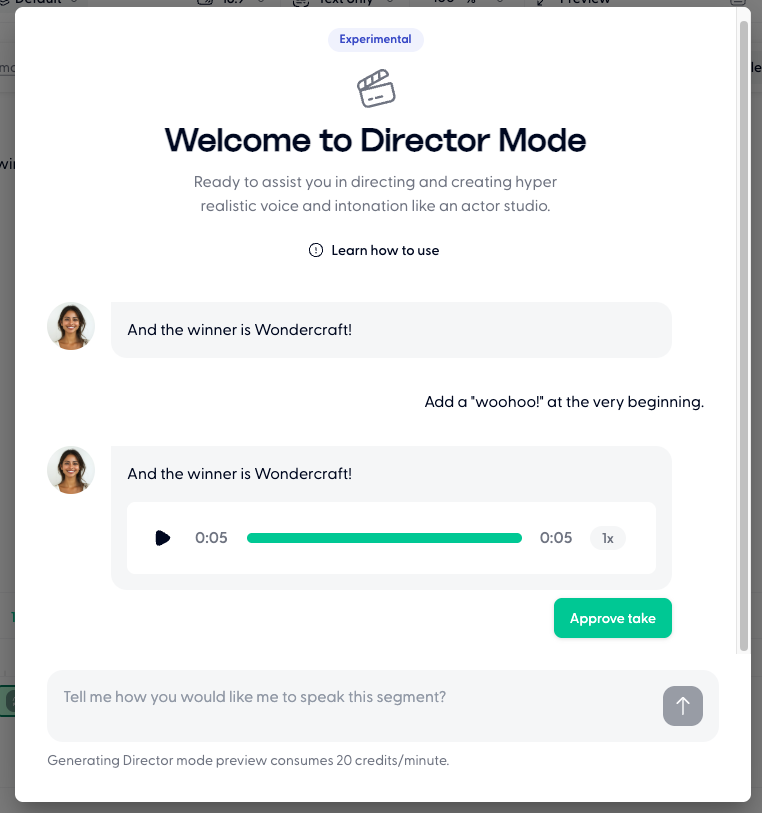
Director Mode gives you a dedicated interface for iterating on the delivery of a single clip through written voice direction. Instead of accepting the default take, you provide instructions, listen to the result, and refine until it matches your vision.
Director Mode is best for single short clip edits, e.g. a short radio ad, rather than a long audiobook. Multiple generations using the same prompt may not yield the same, consistent result.
Select the paragraph you want to direct.
Click the Director Mode button on that clip.

Enter your voice direction in plain language:
"Make the word 'Wondercraft' super exciting"
"Slow down this sentence and add warmth"
"Sound more like a professional news anchor"
Review the generated take.
If it's not right, provide additional direction:
"Add a pause after 'Wondercraft'"
"Even slower, more gravitas"
"Sound more conversational, less formal"
Once you approve a take, the audio integrates directly into your timeline.
Director Mode best practices
Keep clips short: around 30 words works best. Shorter clips produce more natural-sounding results and are easier to iterate on.
Leave accent instructions in: Director Mode automatically converts all voices to an American English voice. If you want a different accent, add in there "Speak in a British English accent."
Be specific: "more energetic" is good; "speak at 1.2x speed with a rising inflection on the last three words" is better.
Focus on moments: Director Mode excels at refining specific moments: a product name emphasis, a dramatic pause, a tone shift. Don't use it to rewrite entire sections.
Iterate in steps: make one change at a time rather than stacking multiple directions in a single prompt.
Parrot Mode
Parrot Mode lets you record yourself reading the script, then the AI generates audio in an AI voice that mimics your intonation, rhythm, and accent. The result sounds like you - but cleaner and more consistent than a raw recording.
Parrot Mode is best for single short clip edits, e.g. a short radio ad, rather than a long audiobook.
Select the clip you want to apply Parrot Mode to.
Toggle Parrot Mode on in the clip settings.

Upload or record a sample - either upload an audio file of yourself reading the text, or record directly in the browser.
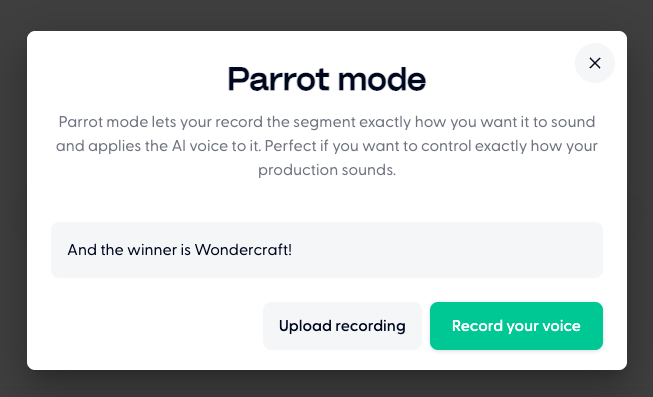
Click Apply sample to segment to preview the AI-generated version using your voice and delivery style.
If you like the preview, click Save. If not, click Previous to re-record.
The generated audio appears on the timeline.
Parrot Mode best practices
Use a quality microphone: clean, clear audio gives the AI a stronger reference to work with.
Match the script: read the exact text that's in the clip for the most accurate result.