Convo Mode Explained
Last updated: August 6, 2026
Convo Mode is ideal for 2-host podcasts and conversational content by creating natural dialogue between two speakers as a single piece of audio.
Note that Convo Mode is available to our Creator and above subscribers only.
Enable Convo Mode
In any audio or video production with exactly 2 speakers, press on the Convo Mode toggle at the top of your script editor
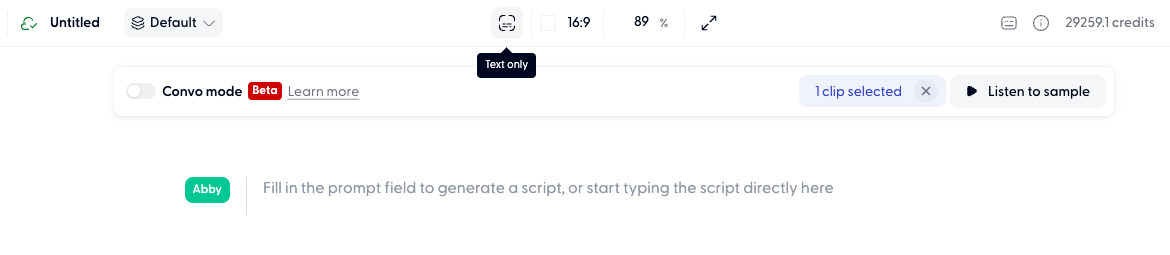
Make sure to select the Text only view.
Note also that Convo Mode only supports a 2 speaker conversation. There is no option to add a 3rd speaker.
Your script will now generate as a natural conversation between two speakers
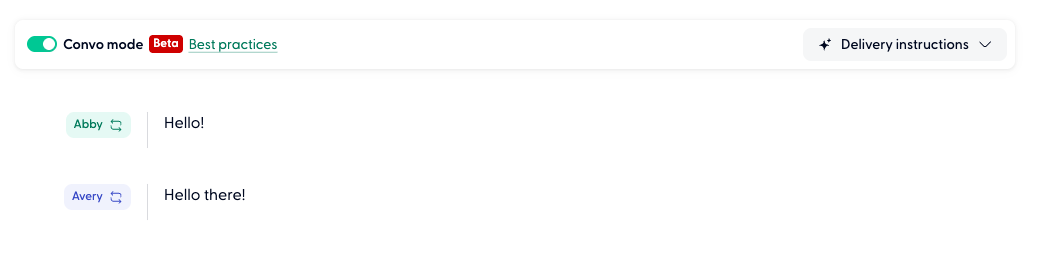
You can also ask Wonda to turn on Convo Mode and generate
Do not switch between Convo Mode and Standard Mode mid-production. Start a new production instead if you would like to compare.
Switching between modes would overwrite any audio generated prior to the switch, in either Convo Mode or Standard Mode.
Delivery instructions
Use the Delivery Instructions field to shape how your conversation sounds. Specify the tone, pace, accent, and scene-setting details.
Accents in Convo Mode
Convo Mode turns every voice into a "standard American English voice", regardless of what accent (e.g. British accent, Australian accent, etc) it carries in Standard Mode.
To overwrite this, you can prompt a speaker to consistently have a specific accent in Delivery instructions. See in example below.
A caveat to this is that out of the two voices of the conversation, only one voice can be prompted to the consistently "non-standard American". If both voices are prompted to be "non-standard american", the AI chooses to disobey both delivery instructions.
Example delivery instructions:
DIRECTOR'S NOTES
For Speaker 1 (Hannah):
Style: The tone must be authoritative, analytical, and deeply engaged with the data.
Pace: Speaks at a moderate, deliberate pace, slowing down slightly to emphasize numerical data (e.g., "nearly 5 percent" or "FORTY percent").
Accent: Strong Indian accent, from Delhi region.
For Speaker 2 (Matthew):
Style: The tone should be curious, thoughtful, and highly professional.
Pace: Maintains a conversational, investigative pace, using short, clear probes to move the discussion forward.
Accent: Standard American accent.
You can find a more comprehensive prompting guide here.
Choose model in Convo Mode:
Click the clip on timeline
Choose the model you prefer:
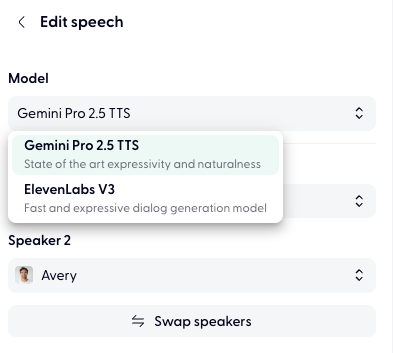
For consistency, we suggest you to use the same model for generations.
Change voices in Convo Mode
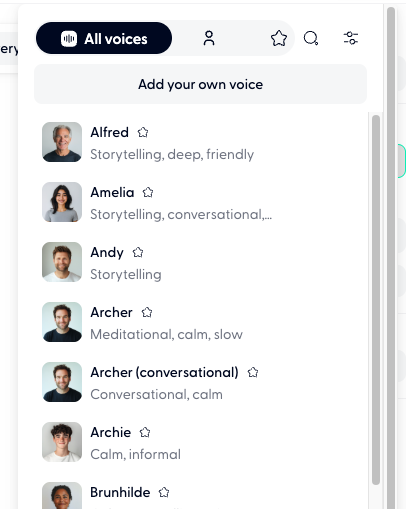
Click on the voice selected for either speaker.
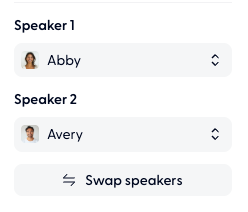
Select a voice in the list to replace the voice used for this speaker.
Timeline editing in Convo Mode
Some timeline editing tools are unavailable in Convo Mode because the entire conversation is a single clip. You won't be able to:
Duplicate a Convo Mode clip
Split a Convo Mode clip
Adjust the speed of a Convo Mode clip
Generate and edit your Convo Mode conversation

If you haven't generated the conversation, or want to start afresh, press on the grey Generate convo button.
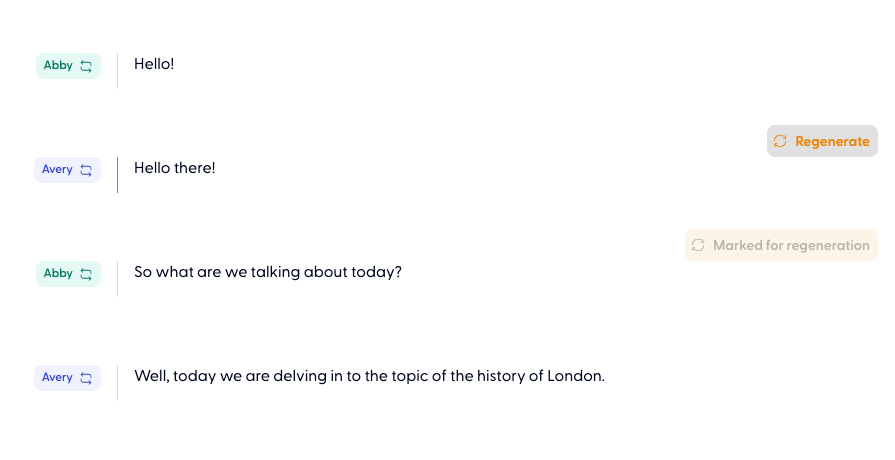
If you want to edit and then generate certain paragraphs/phrases of the full conversation (for example, Convo Mode mixing up a speaker):
Make the script edits in the paragraphs of interest.
Or press on the Regenerate button that appears upon hover
Then, press the orange Generate changes button
When you edit a Convo Mode generation, you would notice that it takes almost as long as the initial full Convo Mode generation.
The reason for that is the nature of a Convo Mode clip, and the full conversation being generated in one clip. That means when you try to regenerate just a paragraph within it, we not only need to generate the audio for that paragraph, but also to locate, clip, replace, and stitch back up the audio that needs replacing in the original generation. And therefore it could take some time.
Warning: While audio is generating in Convo Mode, do not close the browser tab, edit or delete the script, or toggle off Convo Mode. These actions will cause the generated audio to become detached from the session, resulting in credit deduction without usable output. Wait for the generation to complete fully before performing any of these actions.
Convo Mode best practices
Make the VO script conversational
When prompting Wonda, ask for a "NotebookLM-style" conversational script. This format produces natural back-and-forth dialogue with two speakers that works well with Convo Mode's audio generation.
You can also ask Wonda to include disfluencies which is interruptions, filler words, and imperfections in the natural day-to-day speech that make the output sound more human.
Add Delivery instructions
Explain the style, tone, and context of your conversation. A conversation between a lecturer and a student talking about Economics would sound very different to a conversation between two school friends talking about celebrities after class.
Add inline speech prompts
Include instructions using natural language in square brackets. A few examples include:
[Chuckle a bit]— adds a laugh before or during the line[Say this sarcastically]— adjusts the delivery tone[Whisper]— lowers the volume and intensity[Laugh]— inserts a natural laugh[Pause]— adds a beat of silence
Troubleshooting common issues
The speaker assignment is getting mixed up. How do I fix that?
Unfortunately, sometimes Gemini tries to be smart and generates audio with the speakers it thinks makes sense in the context of the script. This could mean that the wrong speaker is assigned, meaning Speaker 1 saying something that's meant to be said by Speaker 2, and vice versa.
To fix this (you get 2 free regenerations), please mark only the paragraphs where Convo Mode had used the wrong speaker for regeneration as explained above, and press on the orange Generate changes button.
My voice is speaking with an American English accent in Convo Mode, but it is an Australian/British/Indian voice.
Convo Mode turns every voice into a "standard American English voice", regardless of what accent (e.g. British accent, Australian accent, etc) it carries in Standard Mode.
To overwrite this, you can prompt a speaker to consistently have a specific accent in Delivery instructions.
A caveat to this is that out of the two voices of the conversation, only one voice can be prompted to the consistently "non-standard American". If both voices are prompted to be "non-standard american", the AI chooses to disobey both delivery instructions.
My Convo Mode generation failed. What went wrong?
Convo Mode works best for scripts that are max 30 minutes long. If your script is longer than that, the generation will most likely fail. Please shorten the script in that case by dividing up the script into parts.
If your script is below 30 minutes long, occasionally we might encounter generation issues with the Gemini API. Please try generating again in a bit, and keep the tab open when the audio is generating.