Upload and add an audio clip to your project
Last updated: May 13, 2026
This article covers how to upload a pre-recorded audio clip to Wondercraft and add it to your project timeline.
Audio clips are useful for adding interview recordings, voiceover takes recorded outside Wondercraft, pre-recorded intros and outros, jingles, or any other audio you have on file.
Open the Audio Clip tab
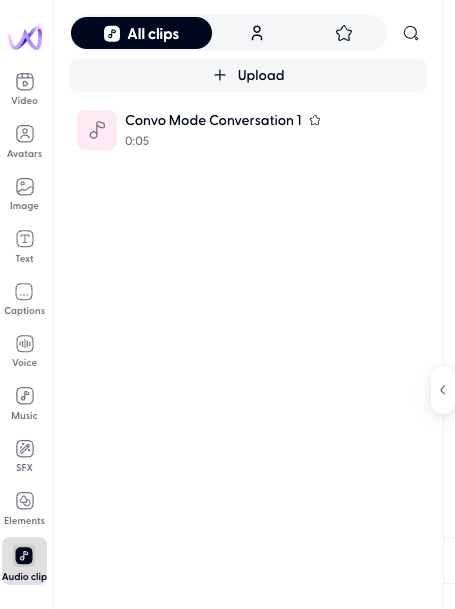
Click the Audio Clip icon in the left panel of the editor. This tab lets you upload and manage your own audio files.
Upload an audio clip
In the Audio Clip tab, click Upload.
Select a file from your computer, or drag and drop it into the upload area.
Name the clip and click Upload.
The clip appears in your Audio Clip tab, ready to use. Click to add the audio clip onto the timeline.
Supported audio clip file types include: MP3, WAV, M4A, OGG, and FLAC.
Manage your uploaded audio clips
Your uploaded music is saved to the selected teamspace and available across all your projects. Any team member with the teamspace access can use your uploaded tracks.
To find your uploads, open the Audio clip tab - custom uploads appear at the top of the list, above library tracks. You can also access them from Library → Audio clip in the main navigation.

Rename an audio clip
Click the pencil icon next to the track name in the Library menu.
Enter the new name and confirm.
Delete an audio clip
Click the bin icon next to the track name.
Confirm the deletion.
Deleting an audio clip removes it permanently from your library. Projects already using the audio clip keep the audio on their timeline, but you cannot re-add it from the library.
Position and adjust audio clip on the timeline
Once an audio clip is on the timeline, you can adjust the position, volume etc manually, or instruct Wonda to do so. See 📄 How to use Wondaand 📄 Wonda skills & prompt guidefor more information.