How to use Wonda
Last updated: September 2, 2026
Wonda is Wondercraft's AI assistant. It can generate scripts, produce audio and video content, add visual elements, attach avatars, manage captions, and iterate on your project - all from a single chat panel.
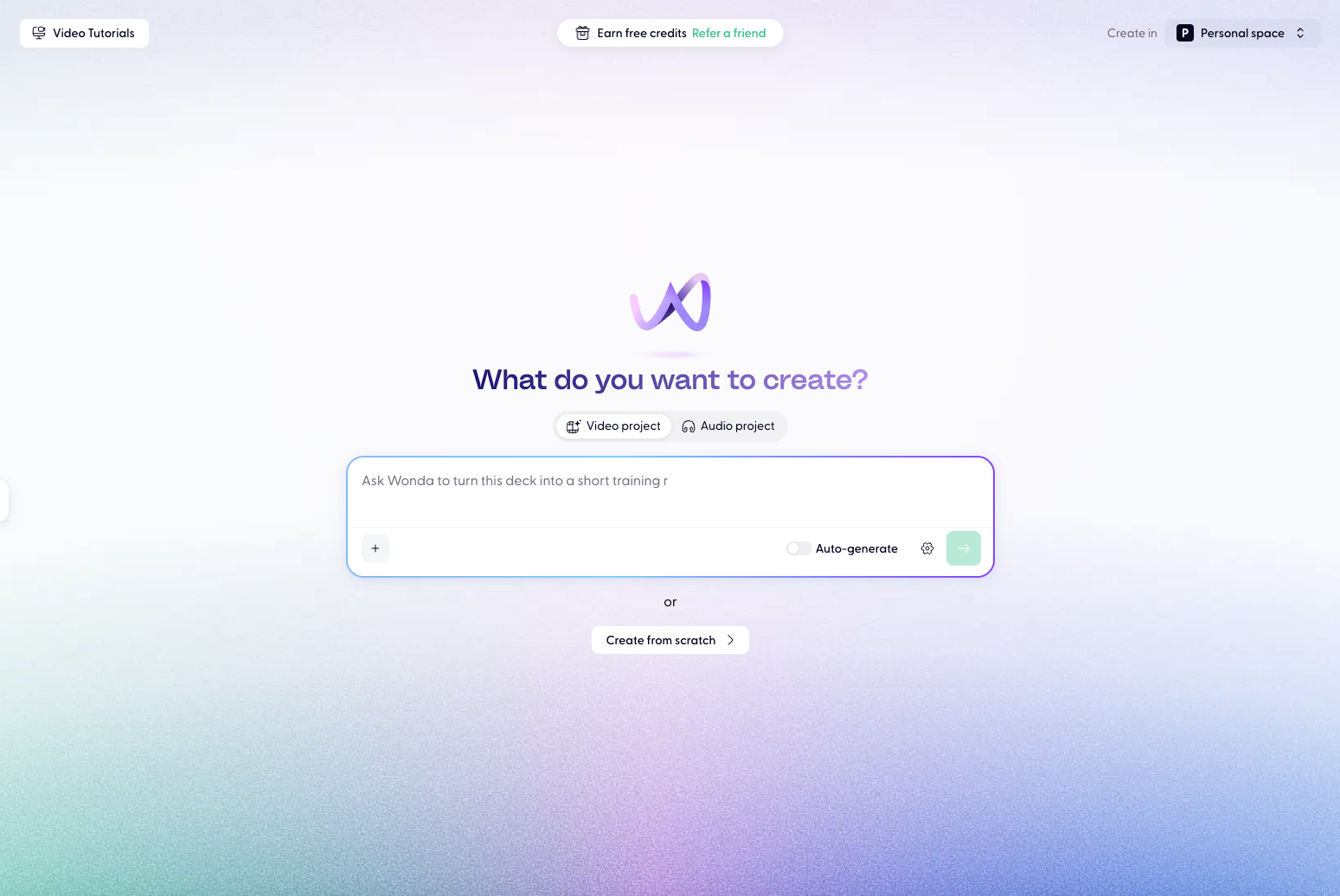
Opening Wonda
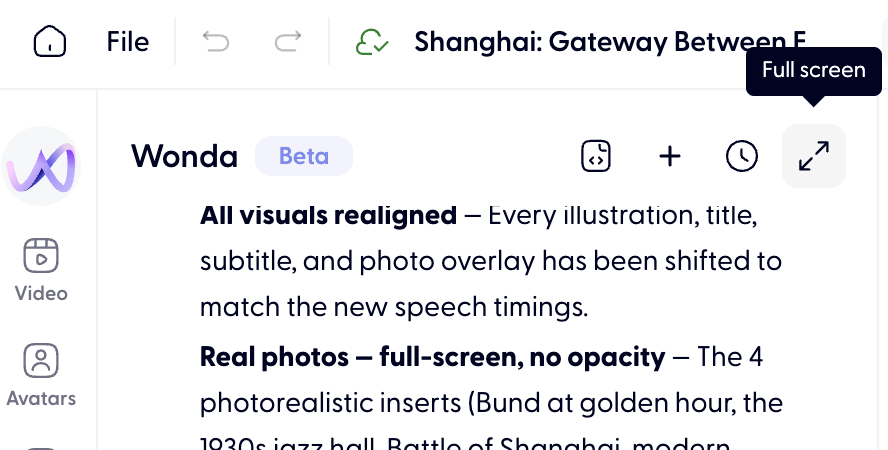
Click the Wonda tab(W purple icon) in the top left panel of the editor. The panel opens as a chat interface. You can expand Wonda to full-screen by clicking the expand icon in the top-right corner of the panel. To upload files or media to Wonda, click the + icon at the bottom of the chat panel.
Wonda works in both audio and video projects. The actions it can take depend on your project type.
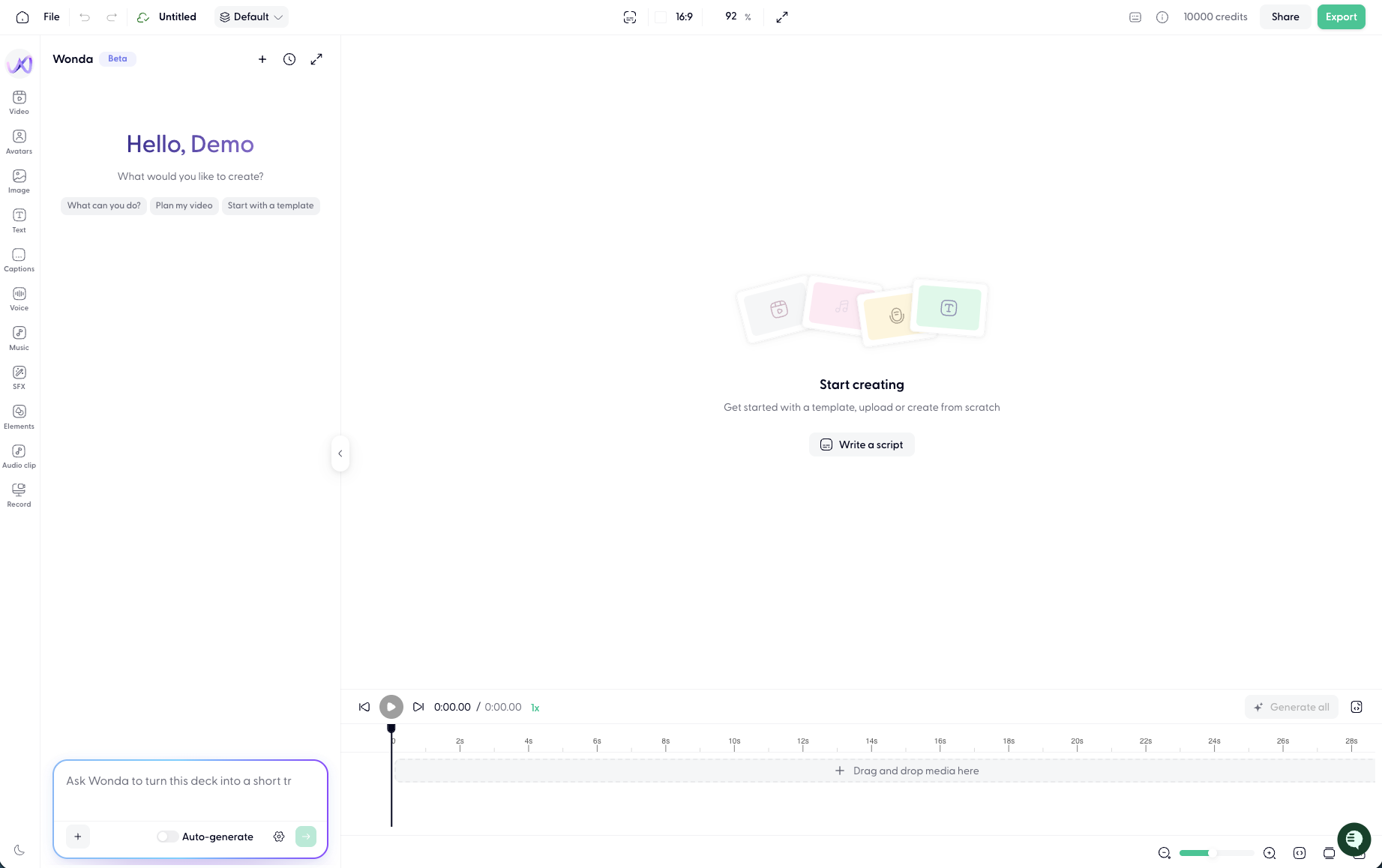
Choosing an AI model
Click the model selector in the Wonda panel to choose which AI model powers your session.
Available models:
Auto - Wonda selects the best model for your prompt (recommended for most tasks)
Most capable and has best 'taste'
Claude Opus 5 - most capable; best for complex scripts and multi-step edits
Claude Sonnet 4.6 - fast and capable; good balance for most tasks
GPT-5.6 Sol - most capable; faster than Opus 5
Minimax and GLM: best for simple tasks
GLM 5.2 - strong general-purpose model; cost-effective
GPT-5.6 Terra - fastest and capable; good balance for most tasks
MiniMax M3 - strong general-purpose model; cost-effective
Different models use credits at different rates. See 📄 How are credits charged?for pricing details.
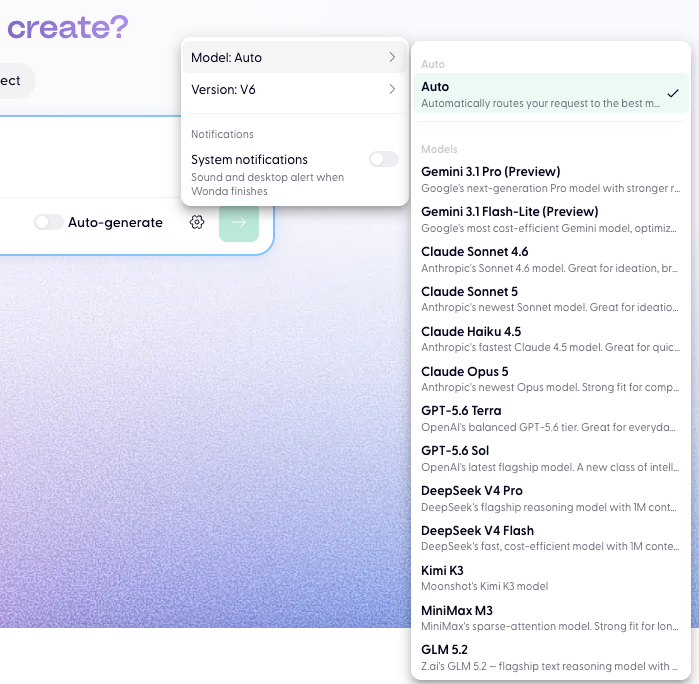
What Wonda can do
See 📄 Wonda skills & prompt guide for details.
Using Auto-generate
Toggle Auto-generate off before sending a complex prompt. When Auto-generate is off, Wonda shows you a storyboard (for video projects) of what it intends to do before executing. You can review and approve the storyboard, or ask Wonda to revise it.
Auto-generate is useful for large video projects where you want visibility before changes are applied to your project.
Setting custom instructions
Save repeated instructions under custom instructions following the instructions here: 📄 How to add custom instructions
Conversation history
Wonda retains your conversation history within a session. You can scroll up to review previous exchanges, refer back to earlier instructions, or continue a multi-turn conversation without re-explaining context.
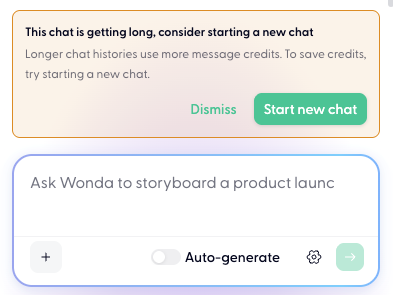
Keep chat short
Wonda has context window, the longer the chat, the higher the chance that Wonda will lose focus or error out. Wonda will detect when chat is growing too long, for the best result, start a new chat when Wonda prompt you:
Expanding to full screen
Click the expand icon in the Wonda header to open the chat in a full-screen view. This is useful for reviewing long conversations or when you need more space to read Wonda's output. Click Collapse to return to the split editor view.
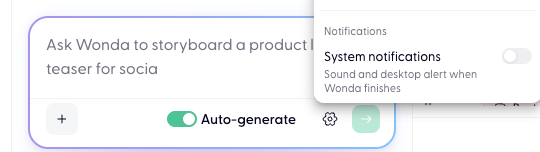
System notifications
Toggle sound and desktop alerts in the gear icon settings. This controls when Wonda notifies you that a task is complete.
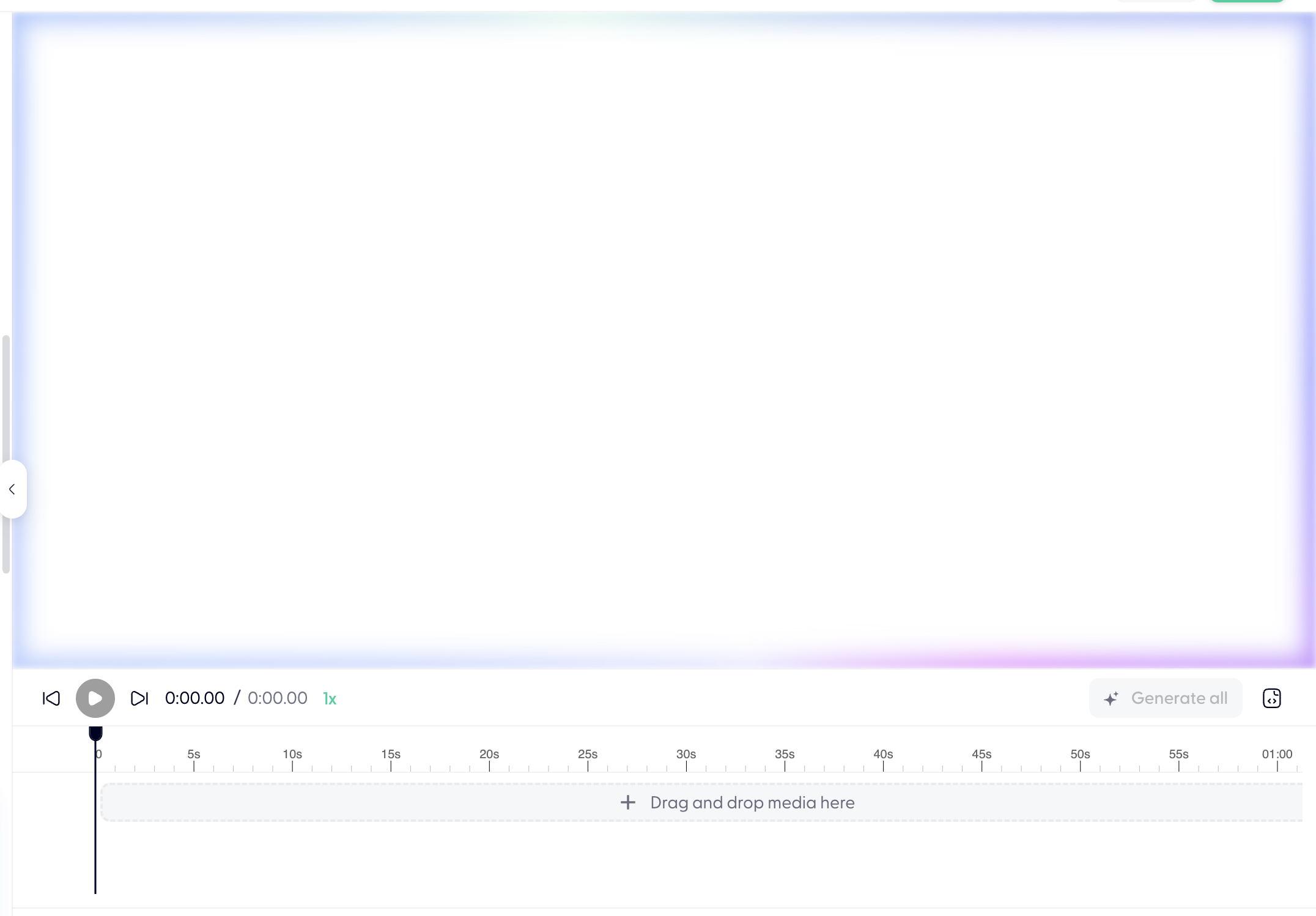
Empty canvas/ timeline
Wonda is working in background when you see your screen like this, please be patient and do not stop/ interrupt.
You can see todo list like this in chat box:
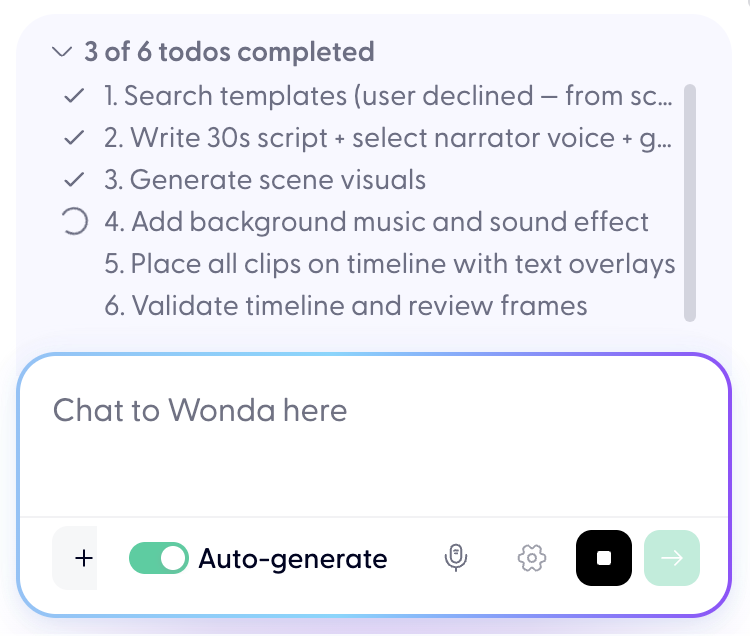
When send icon is disabled, means Wonda is still working in the background, please do not refresh what else wonda will disconnect.
Tips for better results
Be specific about what you want changed and what you want kept the same
Keep Auto-generate toggled off at all times
Set custom instructions once for tone and format, rather than repeating them in every prompt
If a result isn't right, ask Wonda to revise it rather than starting over — it retains context
Do not switch models mid-chat. Start a new chat on a new model.
When chat gets too long, open a new chat what else model will lose focus.
Wonda chat is bound by session/project, and all edits are within that session. Please create new chat in new project when you want to Wonda to work on a separated track.