Create, upload, and add sound effect to your project
Last updated: May 13, 2026
This article covers everything about sound effects in Wondercraft: browsing the library, generating AI sound effects, uploading your own, and positioning them on the timeline.
Open the SFX tab
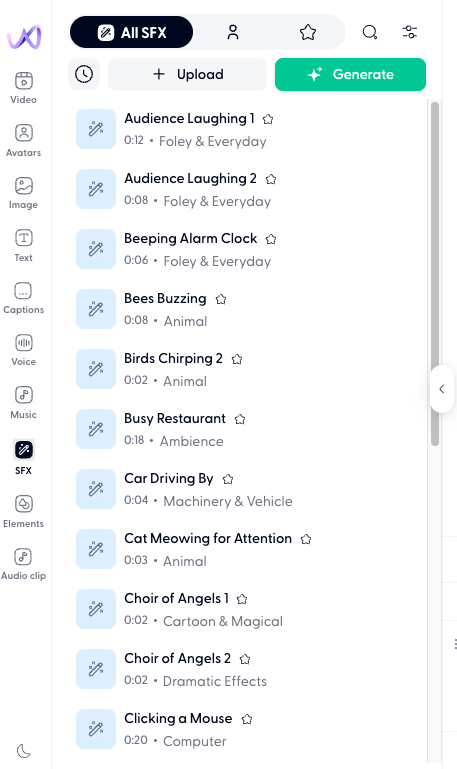
Click the SFX icon in the left panel of the editor. The SFX tab is where you can find, generate, and manage all sound effects in your project.
Browse the sound effects library
The library includes a collection of pre-made sound effects across categories like nature, UI, transitions, impacts, and ambience.
Scroll through the list or use the search bar to find specific sounds — try keywords like "door slam", "applause", "notification", or "whoosh". You can also filter by category to narrow the results.
Hover over any sound effect and click the play button to preview it. Click the effect to add it to the timeline.
Generate an AI sound effect
If the library does not have what you need, you can generate a custom sound effect using AI. This feature is available to Pro and Enterprise users.
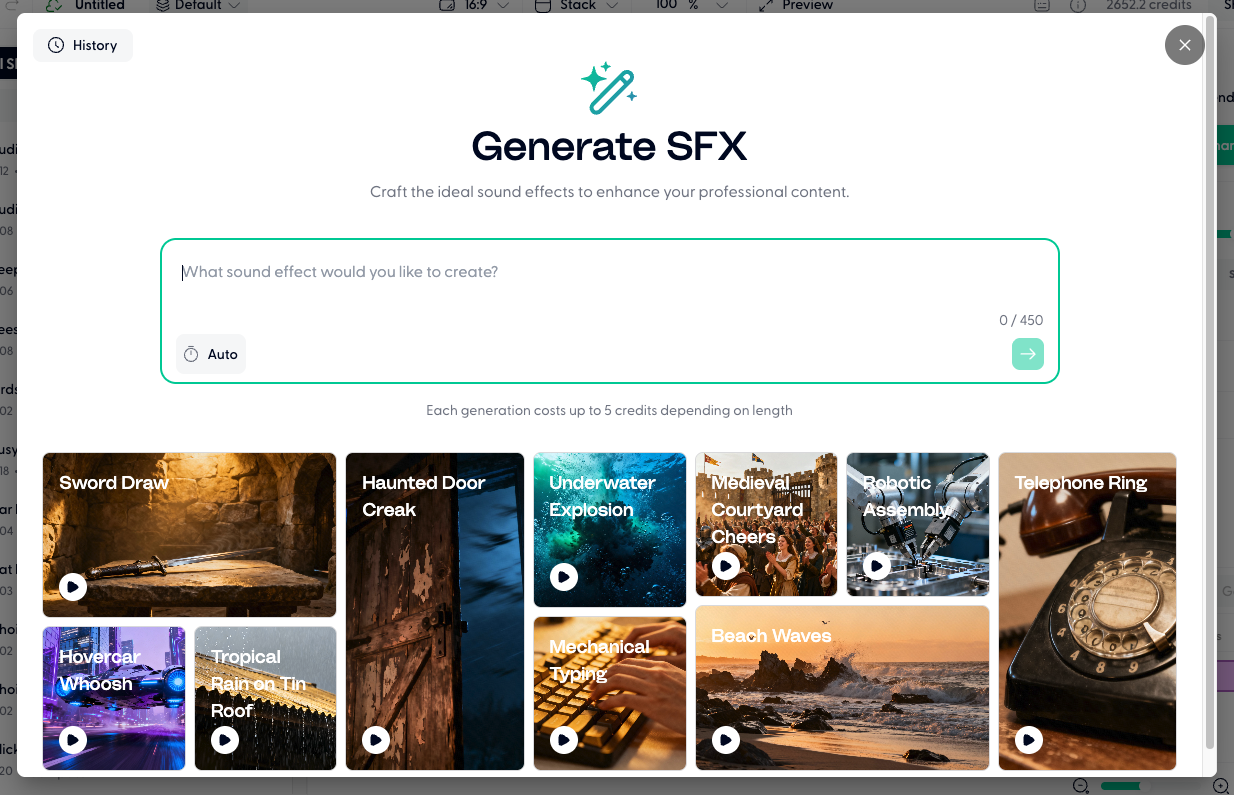
In the SFX tab, click Generate.
Describe the sound you want. For example: "glass breaking on a tile floor", "rain on a tin roof", or "sci-fi laser blast". Feel free to use any of the samples as inspiration.
Click on the green arrow to generate.
The generated SFX appears in your SFX tab. Add it to the timeline by clicking on it.
Upload your own sound effects
You can upload your own audio files to use as sound effects.
In the SFX tab, click Upload.
Select a file from your computer, or drag and drop it into the upload area.
Name your SFX and click Save.
Supported SFX file types include: MP3, WAV, M4A, OGG, and FLAC.
Manage your uploaded and generated sound effects
Your uploaded and generated sound effects is saved to the selected teamspace and available across all your projects. Any team member with the teamspace access can use your uploaded tracks.
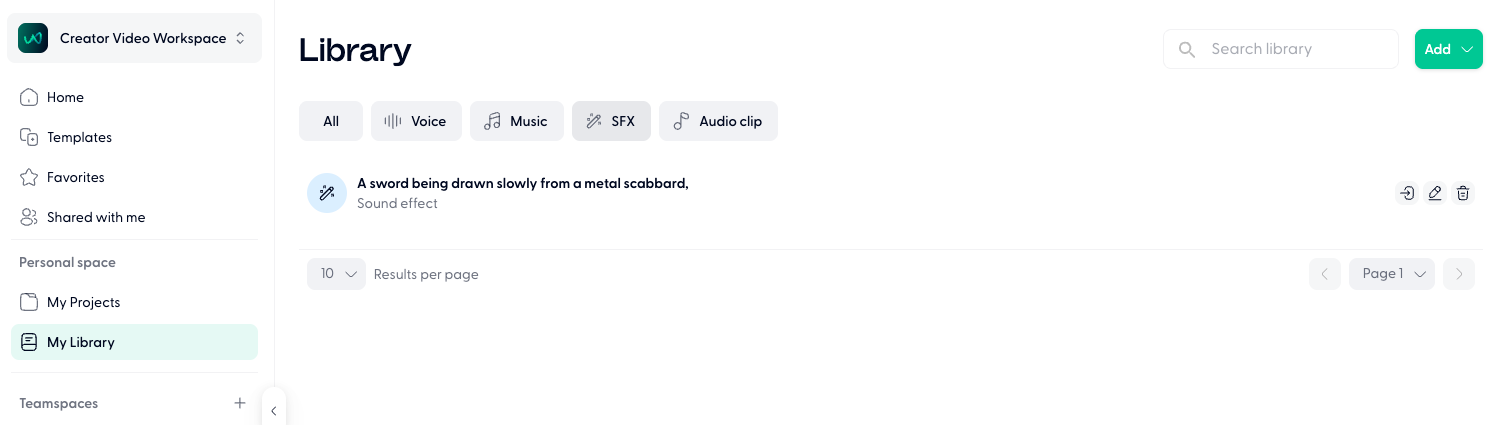
To find your uploads, open the SFX tab - custom uploads appear at the top of the list, above library tracks. You can also access them from Library → SFX in the main navigation.
Rename a sound effect
Click the pencil icon next to the SFX name in the Library menu.
Enter the new name and confirm.
Delete a sound effect
Click the bin icon next to the SFX name.
Confirm the deletion.
Deleting a sound effect removes it permanently from your library. Projects already using the sound effect keep the audio on their timeline, but you cannot re-add it from the library.
Position and adjust sound effect on the timeline
Once a sound effect clip is on the timeline, you can adjust the position, volume etc manually.
Use Wonda to add sound effects
You can ask Wonda to find or generate sound effects for you. Try prompts like:
"Add a subtle whoosh at the start of clip 3"
"Show me options for an alarm bell ringing"
"Generate a sound effect of birds chirping in a forest"
"Add a ding sound effect after the intro"
Wonda will suggest or generate sound effects and add them to your timeline. See 📄 How to use Wonda and 📄 Wonda skills & prompt guide for more information.