How to use Audio Effects
Last updated: April 13, 2026
Audio effects let you apply processing to individual speech clips to improve or alter their sound. Available effects are accessed through the Audio controls panel on any selected clip.
Accessing audio controls
Click on a speech clip in the timeline to select it.
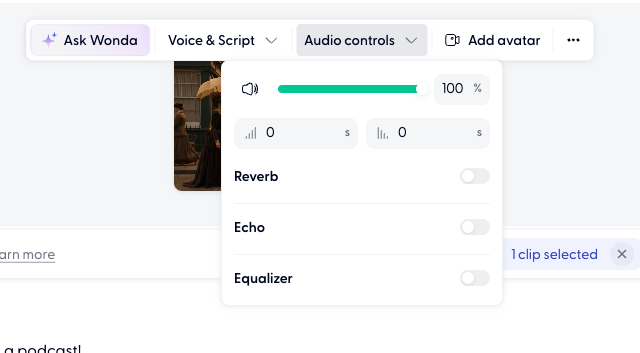
In the clip toolbar at the top of the canvas, click Audio controls.
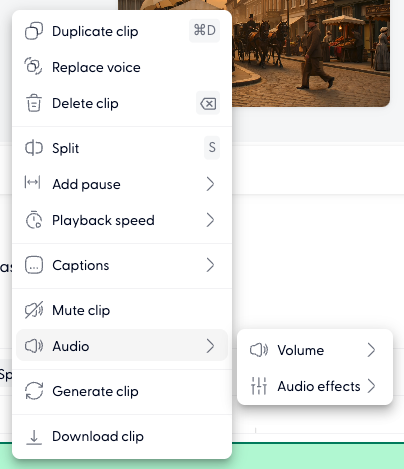
You can also right click on a timeline clip and access the Audio Effects under the Audio option.
Volume
The volume slider sets the clip's playback level as a percentage of its original volume (default: 100%). Drag the slider or type a value directly to adjust.
Fade in and fade out
Set a fade duration (in seconds) for the start and end of the clip. This creates a gradual ramp up or down in volume rather than an abrupt start or end.
Fade in — audio ramps up from silence at the start of the clip
Fade out — audio fades to silence at the end of the clip
Enter the number of seconds in the fade fields. A value of 0 means no fade.
Effects
Three effects are available as toggles. Each can be switched on or off independently:
Reverb
Adds a sense of space or room to the audio. Useful for making voices sound less dry or clinical.
Echo
Adds a delayed repeat of the audio signal. Use sparingly — typically for creative effect rather than general speech.
Equalizer
Enables frequency-based tone adjustments. Toggle on to access EQ controls and boost or cut specific frequency ranges.
Note that these audio effects apply to the individual clips, not to the whole track.