Publish your folder
Last updated: July 3, 2025
You are now able to publish an entire folder of tracks. Publishing means you can either:
First make sure at least one track / file within the Folder is individually published. Check out this article on how to do that:📄 Publish your track
Open or single left click on any Folder, and then click on 'Share' > 'Published site'
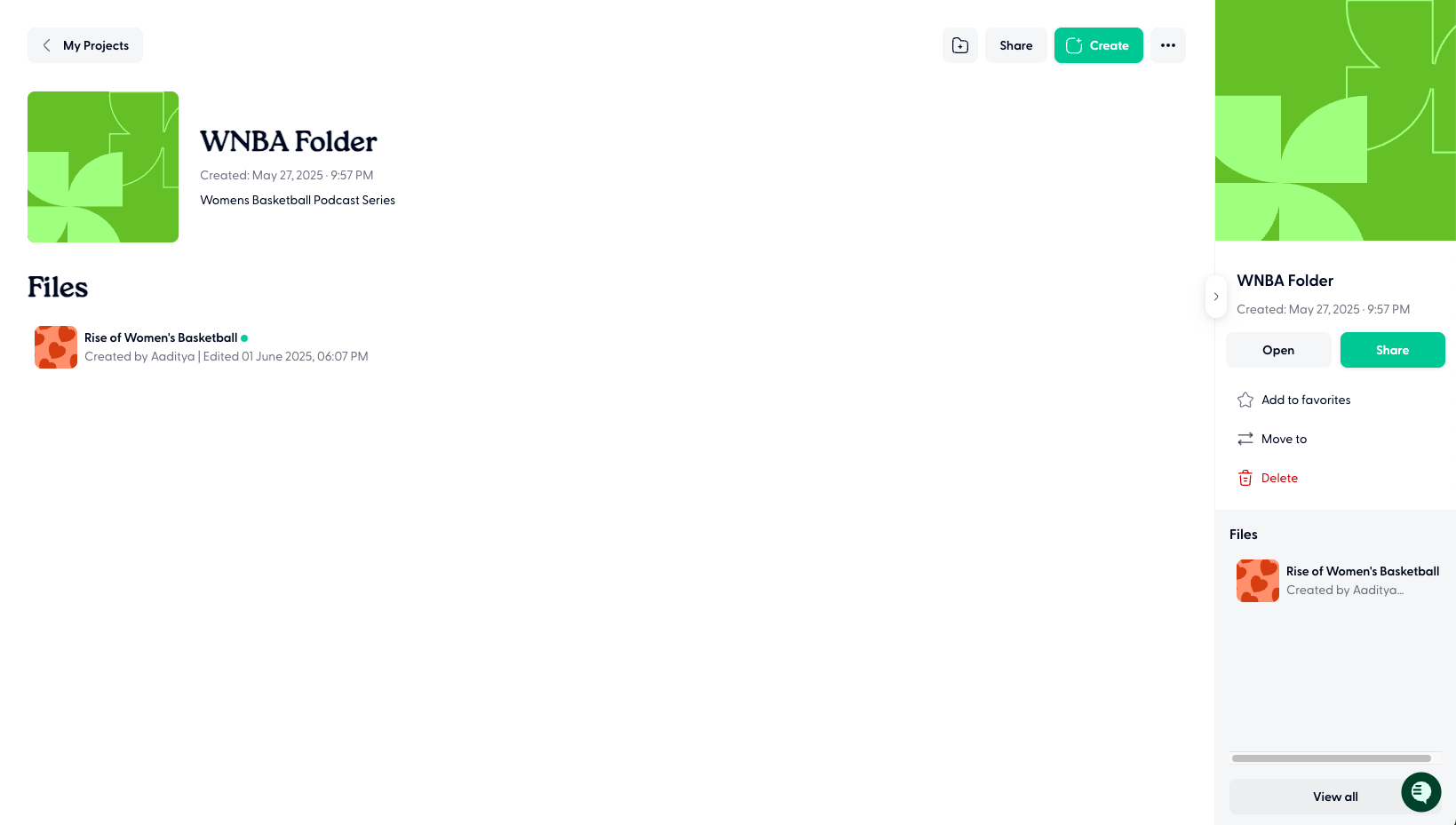
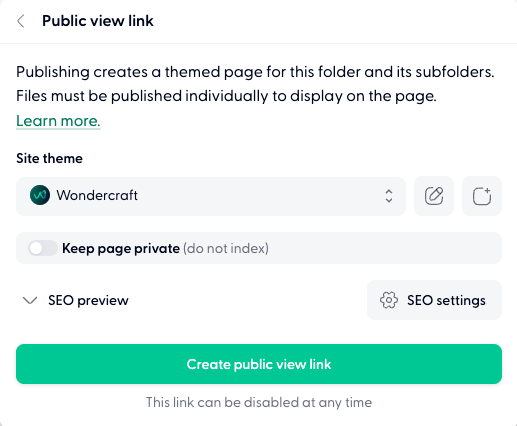
Publishing your folder creates a themed page with a shareable link. You can now customize how you want this page to look like:
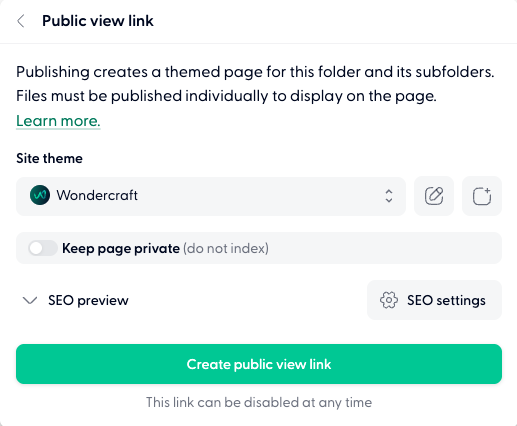
You can choose what the theme of this page could like
If you're the Business or Enterprise plan, you can create, edit and customize themes as per your branding (see more information about this below)
There are two buttons on the right of Site theme, one is to edit the currently selected theme (in this example 'Wondercraft'), or to create a new theme from scratch
For all other plans, you will have access to the Wondercraft default theme only
You can choose to toggle on/off if the published page is discoverable on the web or not (for Creator plans and above, for free users it will be default on)
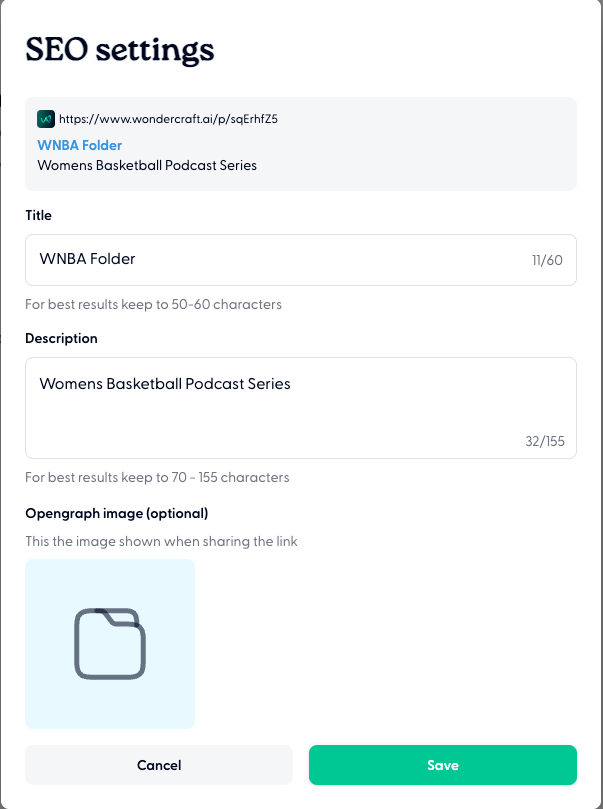
While this is toggled on, there will be SEO settings you can customize, like title and description of the page and an Opengraph image which you can save
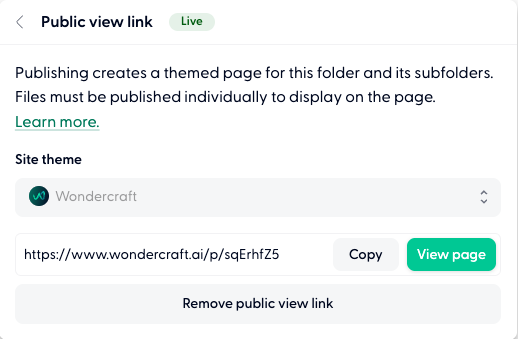
When ready to publish, hit 'Publish site'. If you're on a Creator plan or above, you can schedule when it should go live by pressing on the calendar button
Once the site is live, you'll see a 'Live' green icon come up, and you'll have access to the link which you can copy and share
If you want to remove the link, or if you want to make any edits to the published page, you can Unpublish the site anytime
Once you've made any more edits, just Publish the site again following the same instructions
Creating or editing a custom theme (for Business and Enterprise plans)
Choose to edit an existing page theme (pencil icon) or create a new one (far right icon with a plus)
The theme editor will open showing a sample podcast where you can make customisations to the page's theme:
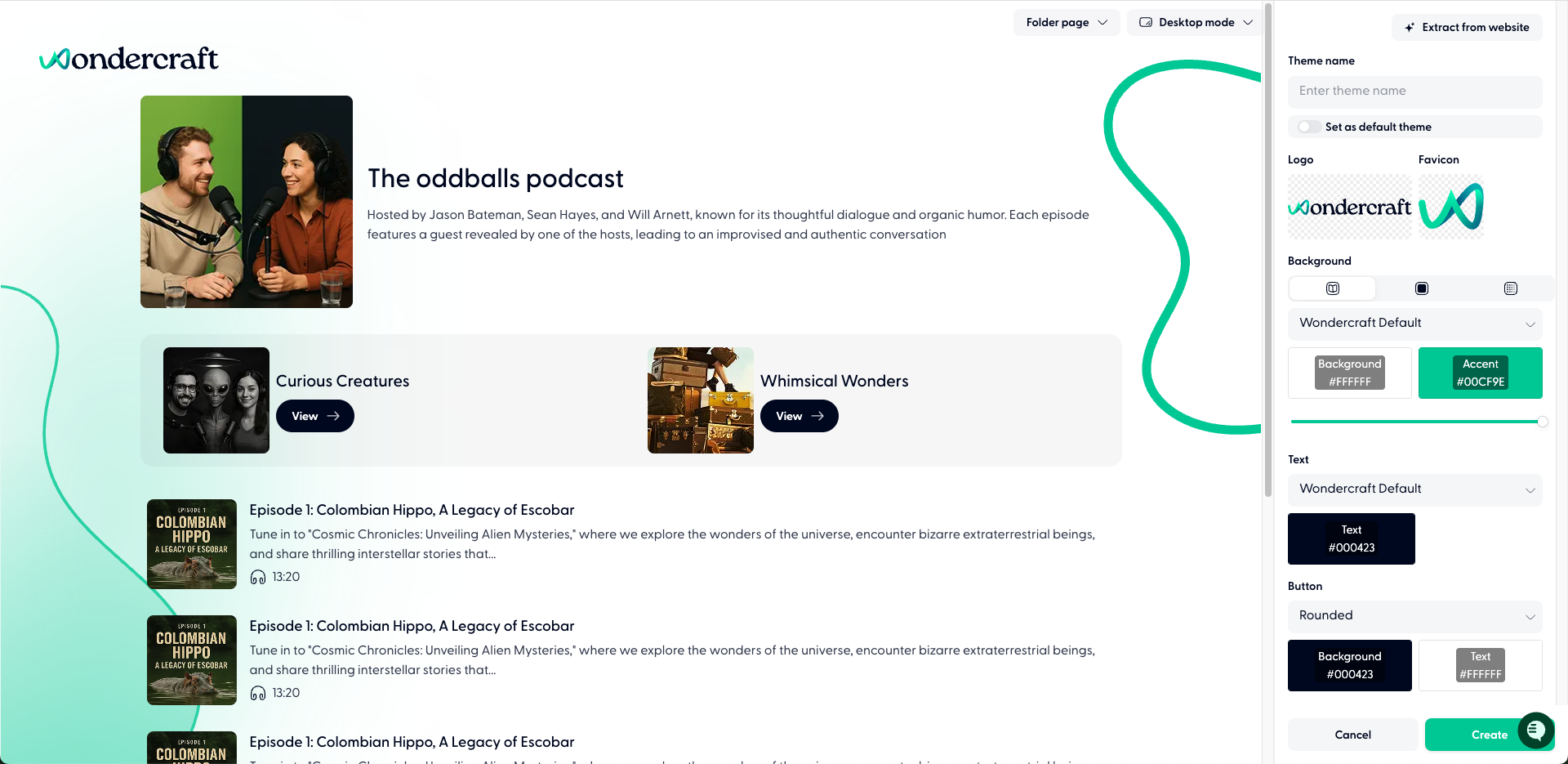
You can automate the design by clicking 'Extract from website' in the top-right
Just copy-paste in the URL of your brand's (or client's or otherwise) website and click 'Extract'. The system will automatically create a branded page based on the colour scheme and design of the website
You can choose to then manually tweak certain aspects of the theme:
Upate the Logo or Favicon by uploading your own images
Change the Background and choose the background and accent colours. Background type options are:
Illustrations (default with wavy lines as shown in the image)
Solid single background colour
Gradient colours
Change the font of the text used and the text colour
Change how the buttons look, their colour and text colour in them
Ensure to name your theme
Finally hit Create to save this theme and apply it to your published page
There are also options to see how your theme would look like under different modes:
You can see how it would look across device types
Toggle between Desktop mode, Tablet mode and Mobile mode
You can see how the theme would be shown for when a single track is published vs. an entire folder
Toggle between File page and Folder page
Want a more personalized tour of the platform? Sign up to our Weekly onboarding session with our Founder & CEO Dimi. Groups are kept small, so you can ask any specific questions.
Book your spot now here, spaces are limited!