Create, upload, and add music to your project
Last updated: May 13, 2026
This article covers everything about music in Wondercraft: browsing the library, generating AI music, uploading your own tracks, managing uploads, and adjusting music on the timeline.
Open the Music tab
Click the Music icon in the left panel of the editor. The Music tab is your central hub for finding, generating, and managing all music in your project.
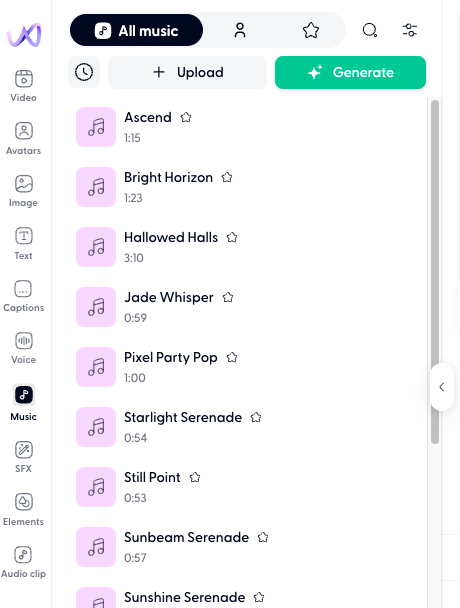
Browse the music library
The library includes a curated collection of royalty-free tracks across genres and moods.
Scroll through the list or use the search bar to filter by keywords like "upbeat", "cinematic", "jazz", or "calm". Click the play button on any track to preview it. Previews play over your current project audio so you can hear how the track fits with your speech.
To add a library track to your project, click on the track. The music clip appears on the music track in your timeline.
Generate AI music
You can generate a custom music track using AI instead of picking from the library.
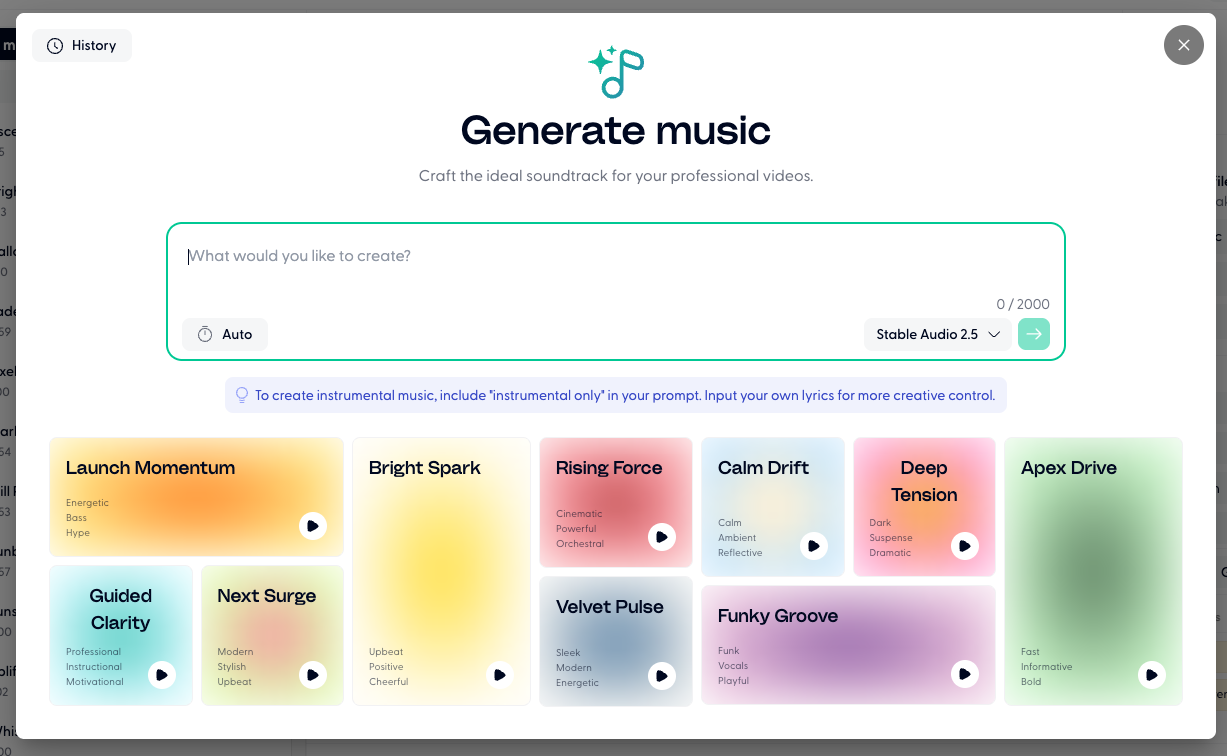
In the Music tab, click Generate.
Describe the music you want in the prompt field. For example: "relaxing lo-fi beat with soft piano" or "dramatic orchestral intro, 15 seconds". Feel free to use any of the samples as inspiration.
Select a model by pressing on the dropdown to the left of the enter button.
Click on the green arrow to generate.
The generated track appears in your Music tab. Add it to the timeline by clicking on it.
Upload your own music
If you have your own music files, you can upload them to use in any project.
In the Music tab, click Upload.
Select a file from your computer, or drag and drop it into the upload area.
Name your track and click Save.
Supported music file types include: MP3, WAV, M4A, OGG, and FLAC.
Manage your uploaded and generated music
Your uploaded and generated music is saved to the selected teamspace and available across all your projects. Any team member with the teamspace access can use your uploaded tracks.
To find your uploads, open the Music tab - custom uploads appear at the top of the list, above library tracks. You can also access them from Library → Music in the main navigation.
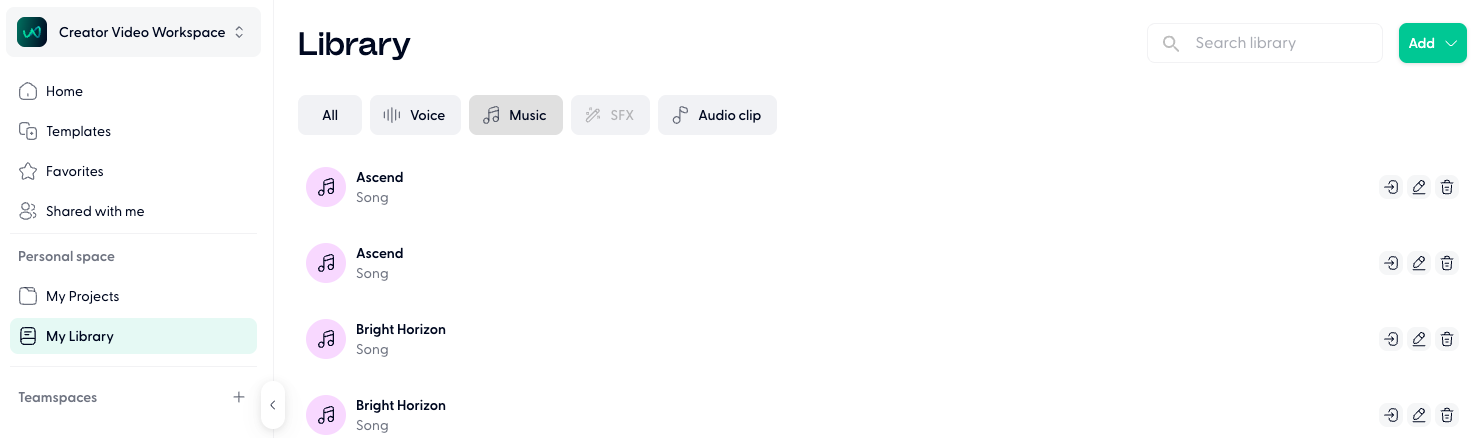
Rename a track
Click the pencil icon next to the track name in the Library menu.
Enter the new name and confirm.
Delete a track
Click the bin icon next to the track name.
Confirm the deletion.
Deleting a track removes it permanently from your library. Projects already using the track keep the audio on their timeline, but you cannot re-add it from the library.
Position and adjust music on the timeline
Once a music clip is on the timeline, you can adjust the position, volume etc manually.
Use Wonda to add music
You can ask Wonda to handle music for you. Try prompts like:
"Add some calm background music"
"Show me upbeat jazz tracks"
"Generate a 30-second cinematic intro track"
"Add music and set the volume to 20%"
Wonda will suggest or generate tracks and add them to your timeline. See 📄 How to use Wondaand 📄 Wonda skills & prompt guidefor more information.