Create and add avatar clips to your video project
Last updated: April 16, 2026
This article covers how to browse, create, and add avatars to your video project using the Avatars tab in the left panel.
Avatars are AI talking head avatars that's lip-synced to generated speech. Imagine avatars as AI personas that come with an appearance (realistic or animated), and an AI voice.
The Avatars tab
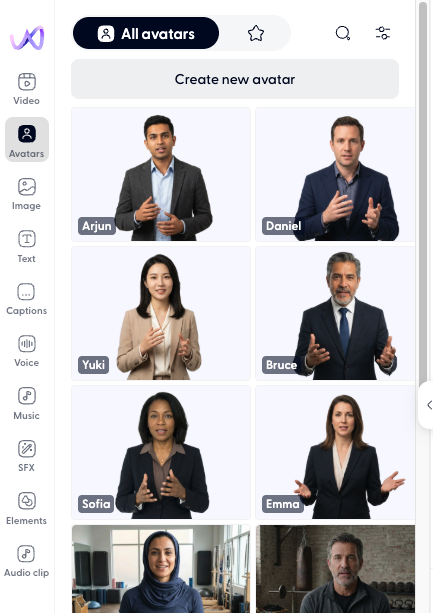
Open the Avatars tab by clicking the avatar icon in the left panel of the editor. The tab has four sub-tabs across the top:
All avatars — shows every avatar available: your custom avatars first, followed by prebuilt ones
Favorites (star icon) — shows avatars you've starred for quick access
Search (magnifying glass) — search avatars by name
Library avatars
Wondercraft includes a library of prebuilt avatars, each available in multiple visual styles.
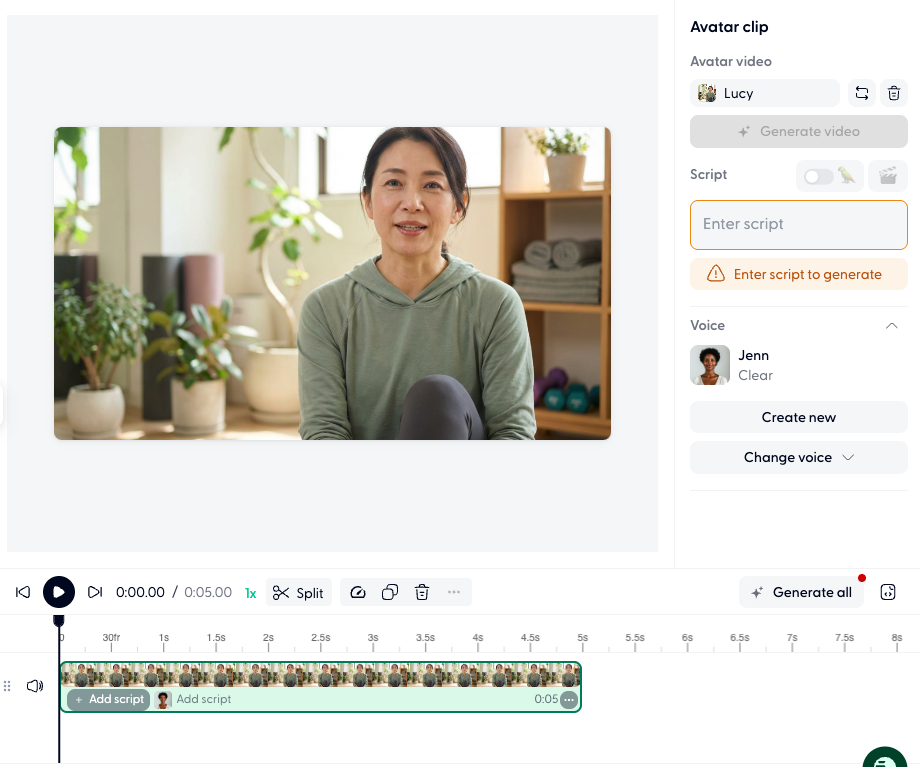
To add an avatar to your project, click its thumbnail. The avatar is placed on the timeline linked to a speech clip.
Create a new avatar
Click Create new avatar at the top of the Avatars tab. You have three creation methods:
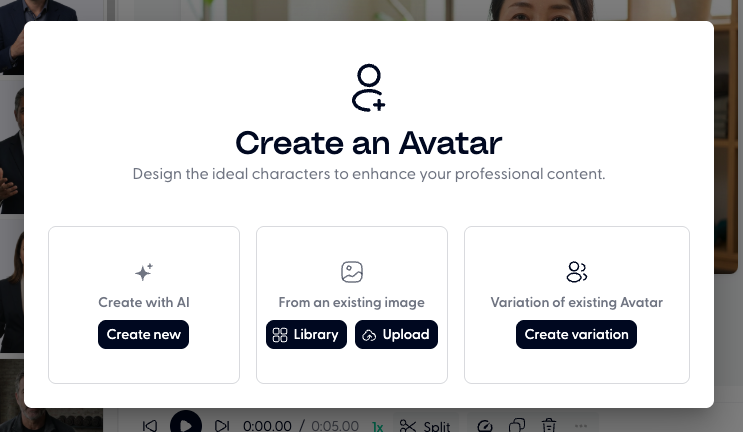
Create with AI
Generate a completely new avatar from scratch using AI.
Click Create new avatar.
Select Create with AI → Create new.
Describe the avatar you want (appearance, style, background).
Preview the generated avatar and save it to your library.
From an existing image
Use a photo or illustration as the base for your avatar.
Click Create new avatar.
Select From existing image.
Choose from the Library (pick an existing image from your workspace) or Upload a new image from your computer.
The image is processed into an avatar you can use on the timeline.
Create a variation
Generate a new variation of an avatar that already exists in your library. For example, you might want to have the avatar in front of different backgrounds.
Click Create new avatar.
Select Variation of existing Avatar → Create variation.
Choose the base avatar you want to vary.
The AI generates a new version with different styling while keeping the core likeness.
Add an avatar to a speech clip
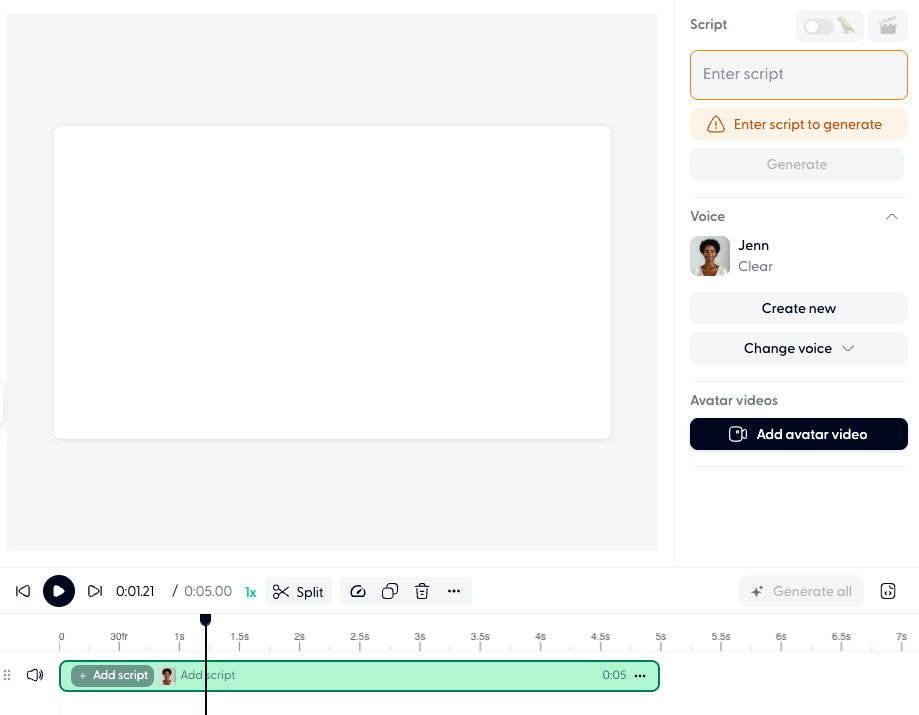
Avatars are tied to speech clips on the timeline. There are two ways to add an avatar:
From the Avatars tab: Click any avatar thumbnail in the left panel. This creates a new speech clip with that avatar attached.
From the clip toolbar: Select an existing speech clip, then use the clip toolbar to assign or change its avatar.
Ask Wonda to add an avatar
You can ask Wonda to handle avatar tasks conversationally. For example:
"Add an avatar to the intro clip"
"Create an AI avatar that looks like a professional news anchor"
"Change the avatar on clip 2 to Maya with a Japandi background"
Wonda will find, create, or assign avatars based on your direction.