Create, upload, and add image clips to your video project
Last updated: April 16, 2026
This article covers how to browse, upload, generate, and add images to your project using the Image tab in the left panel.
The Image tab
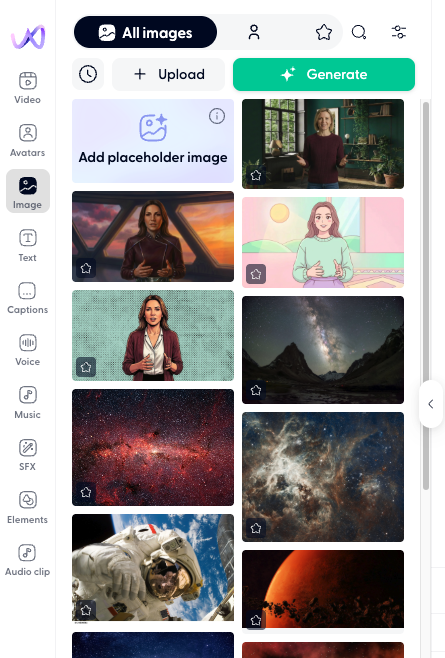
Open the Image tab by clicking the image icon in the left panel of the editor. The tab has four sub-tabs across the top:
All images: shows every image available to you: your uploads and generations first, followed by the stock library
My images (person icon): shows only images you've uploaded or generated
Favorites (star icon): shows images you've starred for quick access
Search (magnifying glass): search the image library by keyword
Browse and select images
The image library displays thumbnails in a grid. Hover over any image to preview it. Click the star icon to add an image to your Favorites.
To add an image to your project, click its thumbnail. The image is placed on the timeline as a new image clip.
Upload your own image
Click Upload at the top of the Image tab.
Select an image file from your computer.
The uploaded image appears in "My images" and can be used across any project in your workspace.
Generate an image with AI
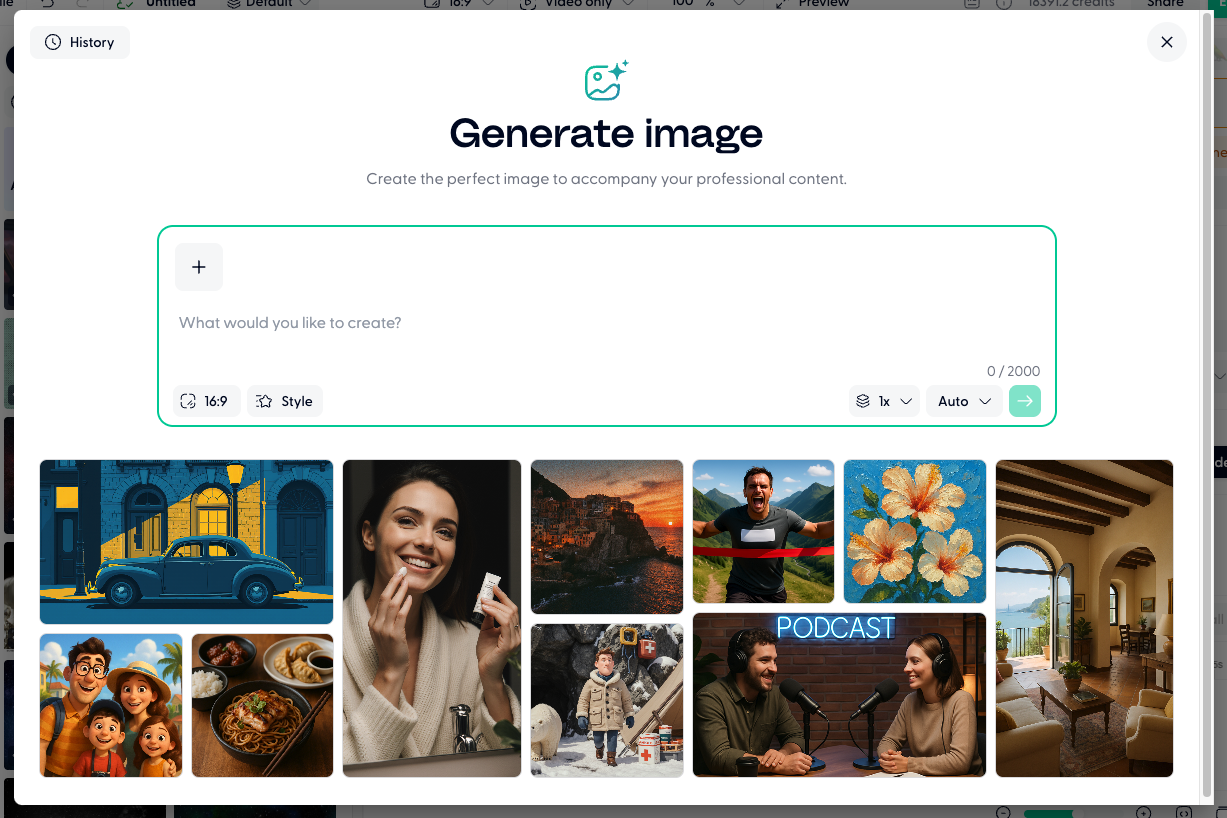
Wondercraft can generate images from a text prompt. Use this when you need a custom visual that doesn't exist in the library.
Click Generate at the top of the Image tab.
Enter a text prompt describing the image you want.
Optionally attach a reference image to guide the generation (click the attachment icon next to the prompt field).
(Optional) Configure other generation settings, including aspect ratio, model used, etc.
Click Generate. The image appears in your History once complete.
View generation history
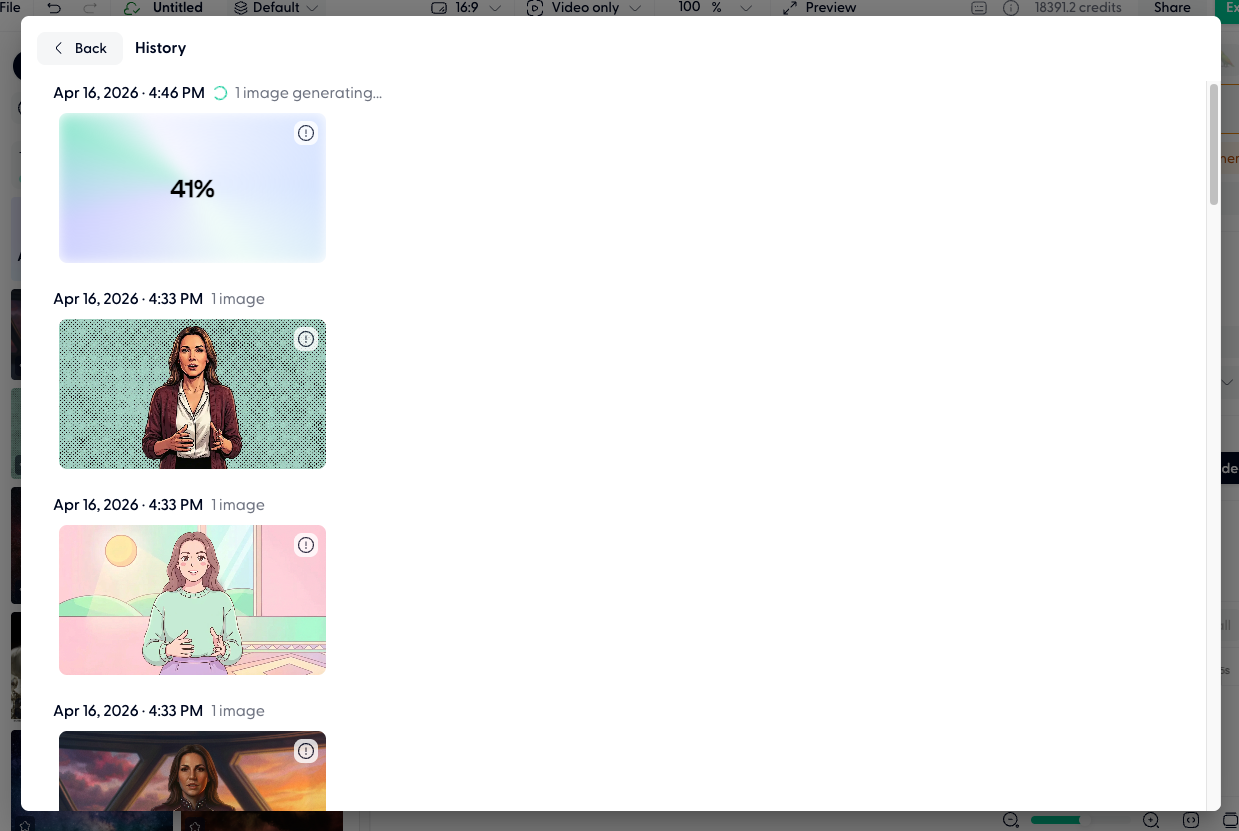
Click History (clock icon) at the top of the Image tab to see all images you've previously generated, or are currently generating. Reuse any generated image by clicking its thumbnail.
Ask Wonda to add images
You can ask Wonda to handle image tasks conversationally. For example:
"Add an image of a modern office space"
"Generate a futuristic cityscape in cyberpunk style"
"Replace the image on clip 4 with something warmer"
Wonda will find, generate, or replace images based on your direction.