Create, edit, and add captions to your video project
Last updated: May 13, 2026
This article covers how to generate, style, and manage captions on your video project using the Captions tab in the left panel.
Note that captions can only be added after the audio has been generated for your VO script.
The Captions tab
Open the Captions tab by clicking the captions icon (CC) in the left panel of the editor. The tab contains:
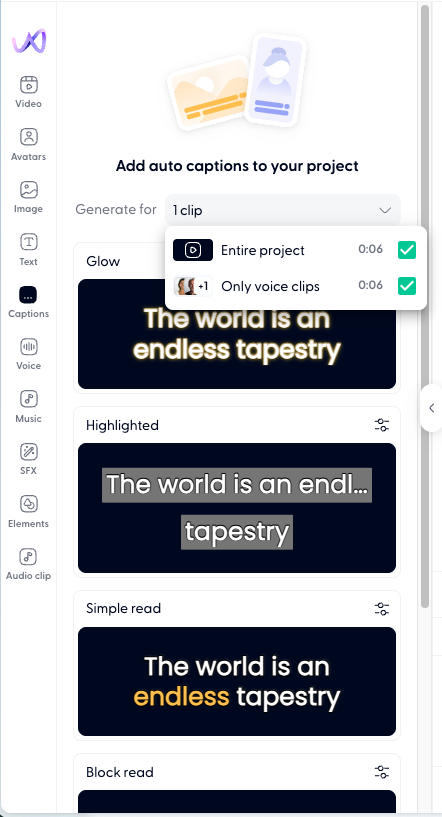
"Add auto captions to your project": the main action to generate captions
Generate for dropdown: choose the scope of caption generation
Style presets: pre-designed caption looks you can apply and customize
Generate captions
Open the Captions tab in the left panel.
Click the Generate for dropdown to choose what to caption:
Entire project — generates captions for all speech clips in your project
Only voice clips — generates captions for voice clips only, excluding music or sound effects
Individual clips — select specific clips by name (each shows its duration)
Click Add auto captions to your project.
Edit caption text
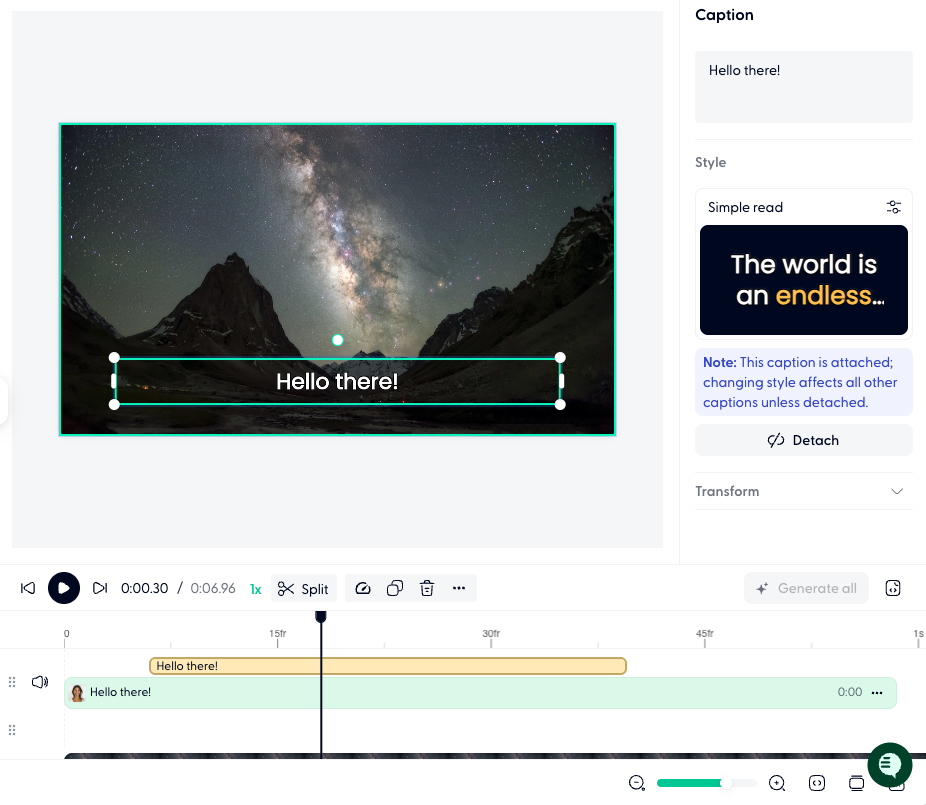
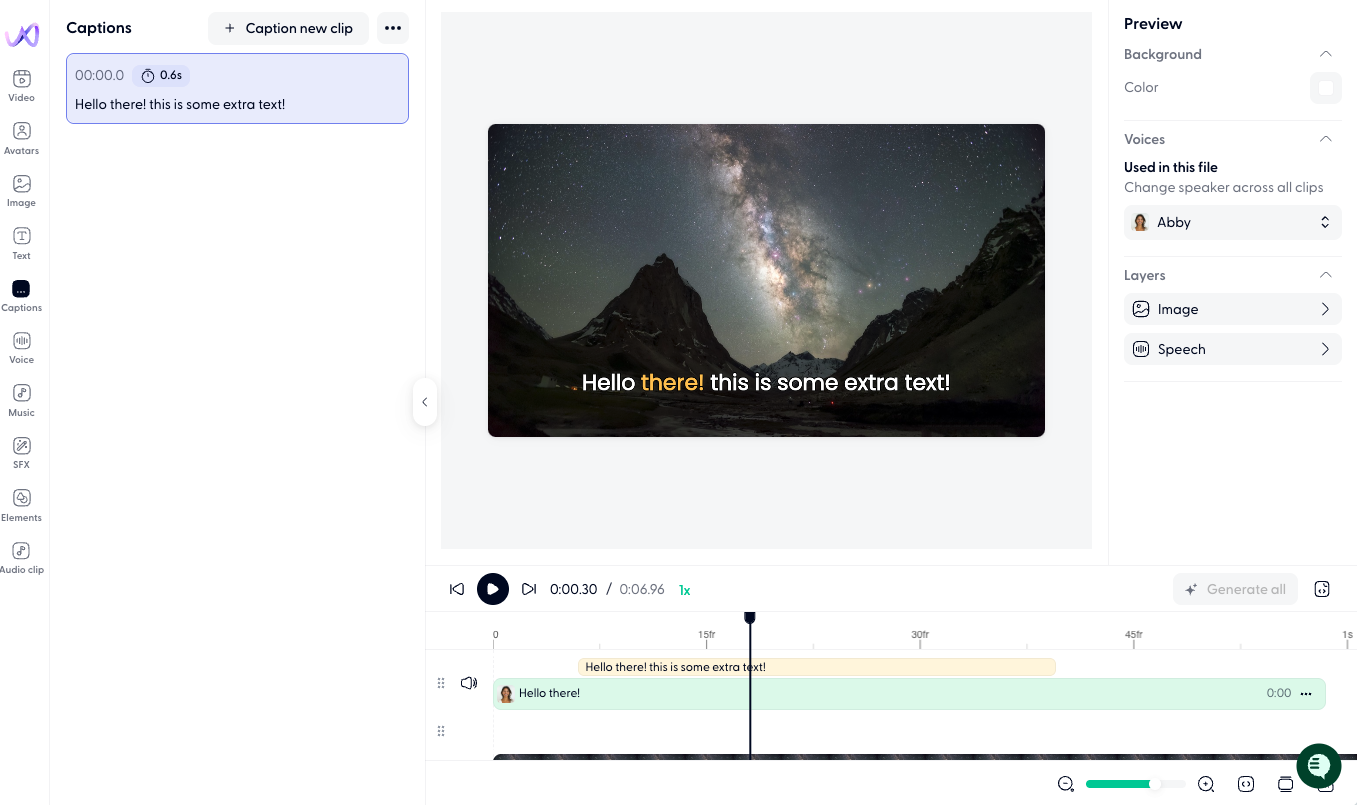
After generating captions, you can edit any individual caption:
Click a caption clip on the timeline to select it.
Double-click to edit the text directly in the caption editor panel.
Ask Wonda to add captions
You can ask Wonda to handle caption tasks conversationally. For example:
"Add captions to the entire project"
"Generate captions for just the intro clip"
"Change the caption style to something more corporate"
Wonda will generate, style, or update captions based on your direction.
Troubleshooting common issues
Captions not displaying correctly in preview or export
If your captions appear misaligned, cut off, or missing in the preview or final export, try the following:
Make sure the project is saved correctly that the cloud icon in the top left corner of the editor is green with a tick, then refresh the editor quickly.

Check that your caption style settings (font size, position) are compatible with your video dimensions.
Export your video and check the final file - preview rendering can occasionally differ from the exported result.
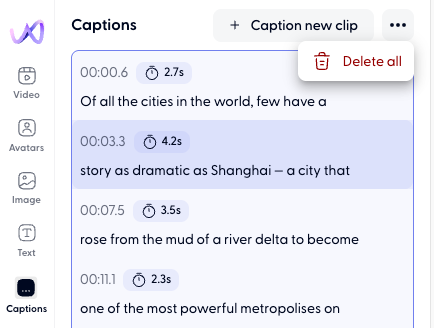
If the issue persists after regenerating, try removing all captions and generating them fresh from the Captions panel on the left.
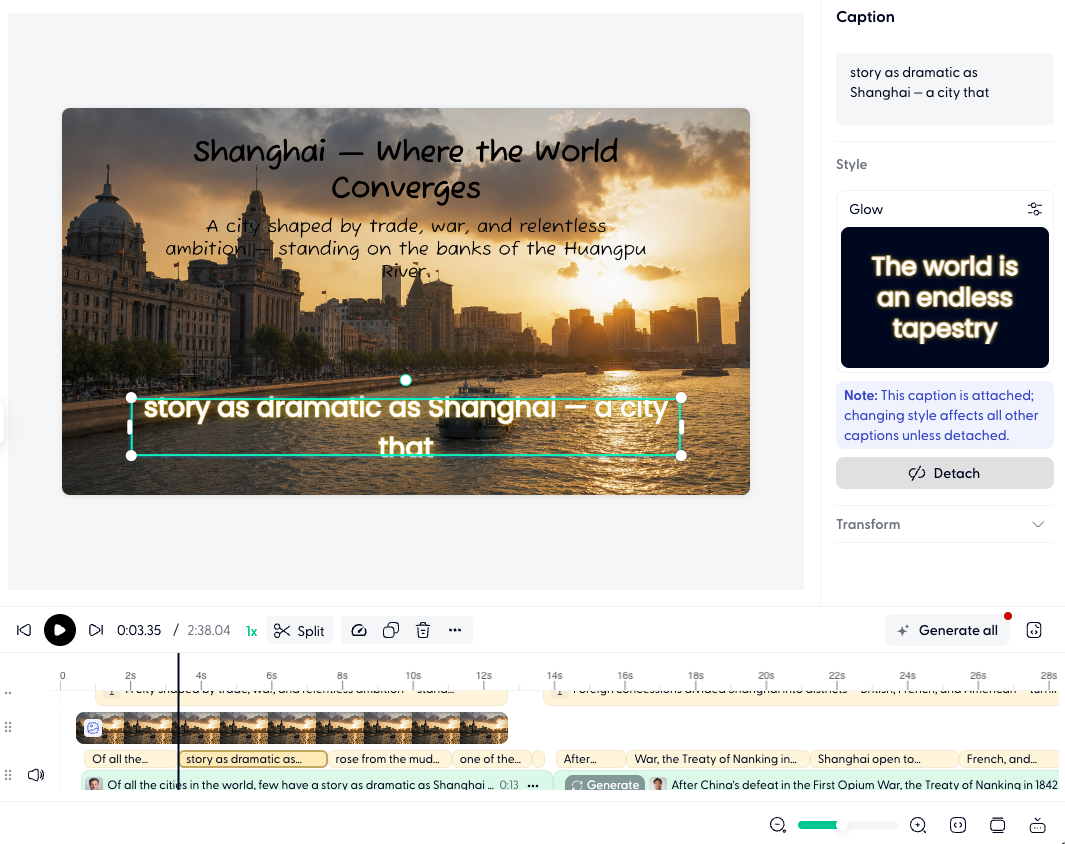
Editing one caption clip changes the style of others
Caption styles in Wondercraft apply globally across your entire project. When you change the font, colour, size, or position of one caption clip, that change applies to all captions.
To change the style of just one/a few selected caption clips, first select the clip from the timeline and detach the clip from the rest of the captions on the RHS, before changing its style.
Captions become out of sync after regenerating audio
Any time you update your script and regenerate the audio, your captions would refresh automatically. If the captions become out of sync, please follow the steps in the top FAQ "Captions not displaying correctly in preview or export" to troubleshoot.
Why can't I generate captions?
Captions are generated from your audio, not directly from your script text. This means that you can't generate captions before generating audio.