Create, edit, and add text overlays to your video project
Last updated: April 16, 2026
This article covers how to add, style, and manage text overlays on your video project using the Text tab in the left panel.
The Text tab
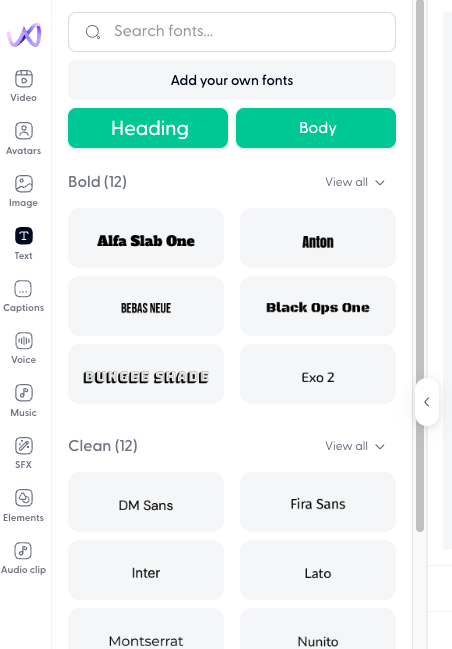
Open the Text tab by clicking the text icon in the left panel of the editor. The tab is organized into:
Search: search fonts by name at the top of the tab
Add your own fonts: upload custom fonts for your workspace
Quick-add buttons:"Heading" and "Body" buttons to quickly drop a text clip onto the timeline
Font categories:fonts grouped by style: Bold, Clean, Creative, and Serif (each with 12+ fonts and a "View all" expander)
Add a text clip
There are two ways to add text to your timeline:
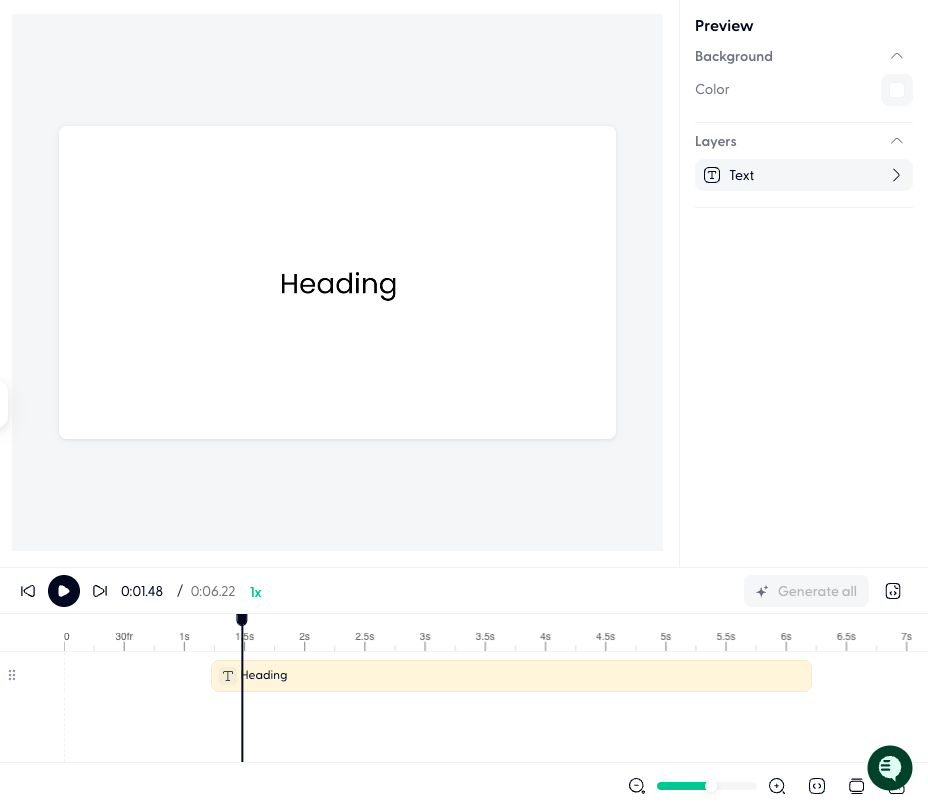
Quick-add: Click the Heading or Body button at the top of the Text tab. This places a text clip on the timeline with a default font appropriate for that type.
From the font list: Browse the font categories (Bold, Clean, Creative, Serif) and click any font. This adds a text clip using that font to the timeline.
Once the text clip is on the timeline, click it to edit the content, position, size, and styling in the canvas.
Upload custom fonts
If your brand requires specific fonts, you can upload them to your workspace.
Click Add your own fonts at the top of the Text tab.
Select font files from your computer (common formats: .ttf, .otf, .woff).
Uploaded fonts appear in the Uploaded fonts section at the top of the font list and are available across all projects in your workspace.
Browse fonts by category
The Text tab groups fonts into four categories to help you find the right style:
Bold - strong, high-impact fonts for titles and emphasis
Clean - minimal, readable fonts for professional layouts
Creative - decorative and expressive fonts for stylized text
Serif - classic serif fonts for formal or editorial looks
Each category shows a preview of available fonts. Click View all to expand the full list within a category.
Edit a text clip
After adding a text clip to the timeline:
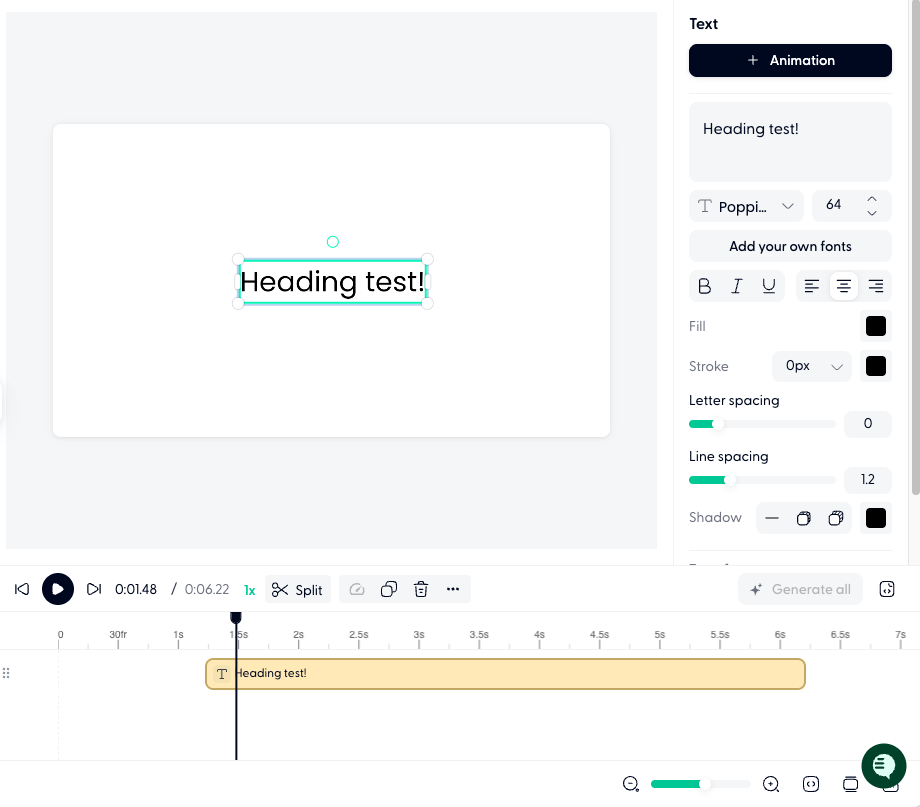
Click the text clip on the timeline or canvas to select it.
Edit the text content directly on the canvas.
Use the clip toolbar to adjust font, size, color, alignment, and other styling options.
Drag the clip on the canvas to reposition it, or drag the edges to resize.
Adjust the clip's duration on the timeline by dragging its edges.
Ask Wonda to add text
You can ask Wonda to handle text tasks conversationally. For example:
"Add a title that says 'Welcome to Wondercraft' in a bold font"
"Put a subtitle at the bottom of the screen"
"Change the font on the title to something more creative"
Wonda will add and style text clips based on your direction.