Create a video project
Last updated: April 16, 2026
Wondercraft supports two types of projects: audio and video. This article covers how to start a video project from scratch or with Wonda.
Starting from the home page
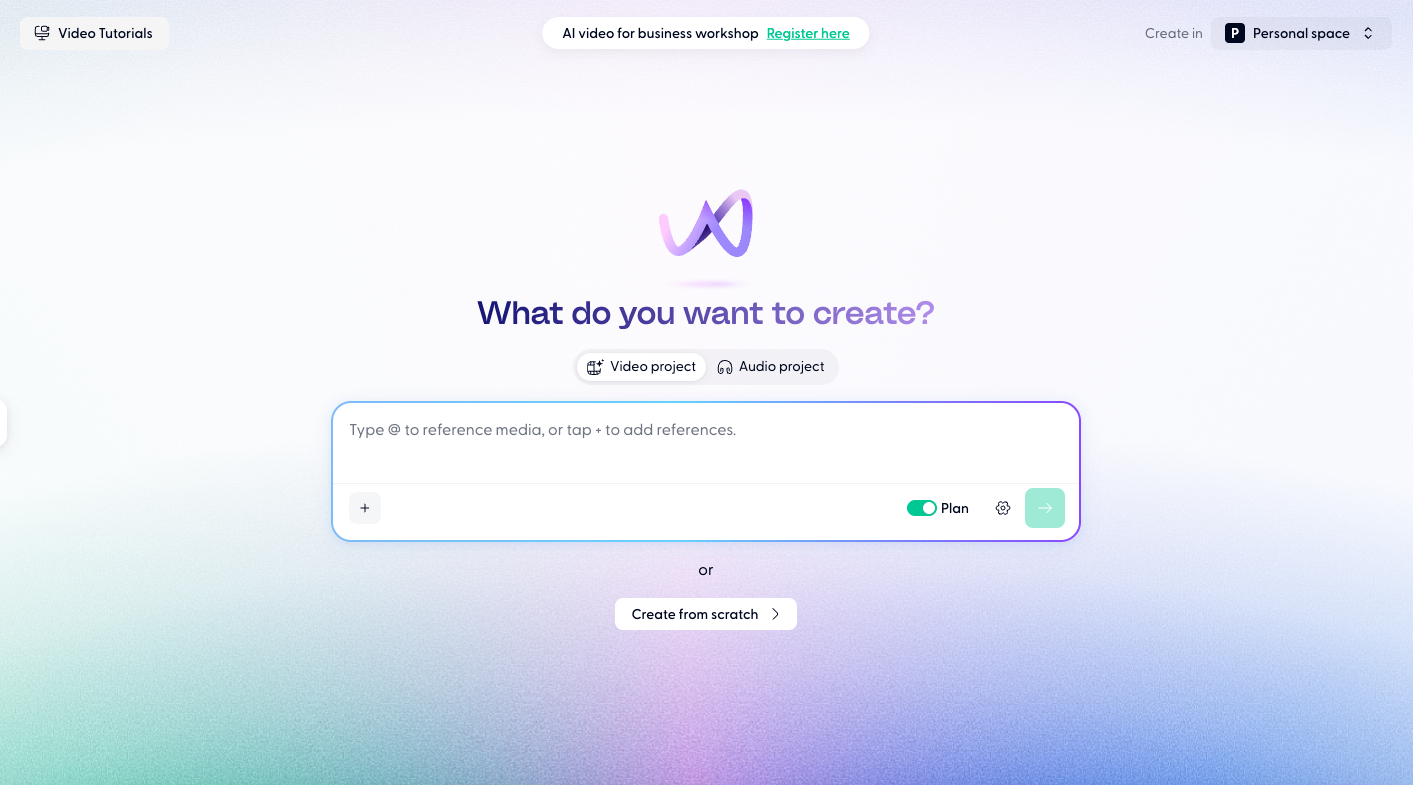
From the studio home page, you'll see Wonda's prompt input at the centre of the screen with two tabs above it: Video project and Audio project. Select Video project before typing your prompt.
You can also click Create from scratch below the prompt box to open a blank video editor directly, without using Wonda.
Choosing a layout
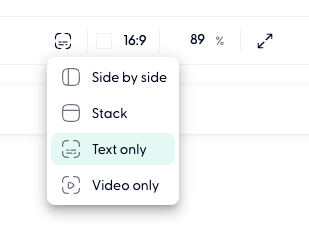
When you open the editor, the layout mode selector is in the top toolbar. The default is Video only. You can switch between:
Video only: full canvas, no script panel visible alongside
Side by side: canvas on the right, script panel on the left
Stack: canvas above, script panel below
Text only: hides the visual canvas entirely; useful if you want to focus on scripting
Adding content
The left panel contains tabs for every asset type you can add to your project:
Video: stock footage and uploaded video clips
Avatars: AI talking head avatars that's lip-synced to generated speech
Image: stock photos and uploaded images
Text: explanatory text overlays
Captions: auto-generated subtitles
Voice: AI voices for speech clips
Music: background tracks, intro and outro jingles and more
SFX: sound effects
Elements: shapes, graphic elements, and animations
Audio clip: uploaded audio clips
Creating from scratch vs. using Wonda
If you start from scratch, you'll land in an empty editor and build your project manually by adding clips to the timeline.
If you use Wonda, describe what you want to create and Wonda will generate a full storyboard - complete with scenes, visuals, and a script - which you can then refine iteratively through conversation.