Create an AI voice
Last updated: August 6, 2026
This article covers every method for creating a custom voice on Wondercraft. Use a custom voice when the library doesn't have the exact sound you need.
Overview of creation methods
Wondercraft gives you five ways to create a voice. Each lives in a different part of the editor, depending on whether you're starting from scratch or building on an existing voice.
Method | What it does | Where to find it |
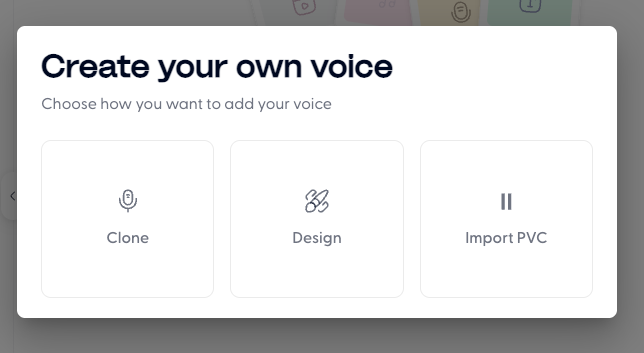
Clone | Replicates a real person's voice from an audio sample (90% accuracy) | Voice tab > Add your own voice > Clone |
Import PVC | Imports a Professional Voice Clone created outside Wondercraft (99% accuracy in terms of emotion, tone, pace, accent, etc; needs ~40 minutes of clean audio) | Voice tab > Add your own voice > Import PVC |
Design/Prompt | Builds a voice from scratch using written instructions | Voice tab > Add your own voice > Design Select an audio clip > Create new > Prompt |
Speak like | Transfers the delivery style of one voice onto another | Select an audio clip > Create new > Speak like |
Clone a voice
Open the Voice tab in the left panel.
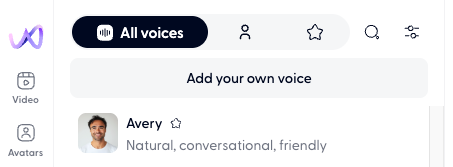
Click Add your own voice at the top of the voice list.
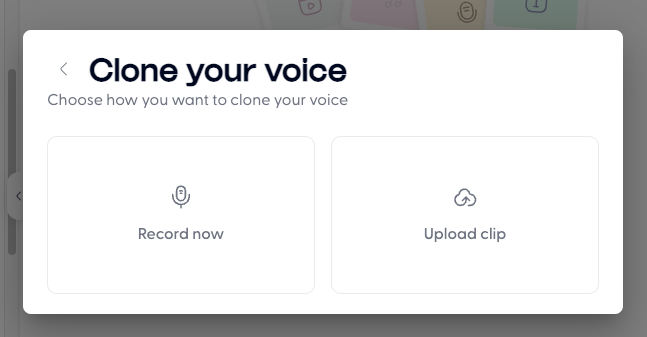
Select Clone.
Upload an audio file or record yourself directly. Audio samples can be up to 5 minutes long and 50 MB. See below for audio recording best practices.
Follow the prompts to name your voice and confirm.
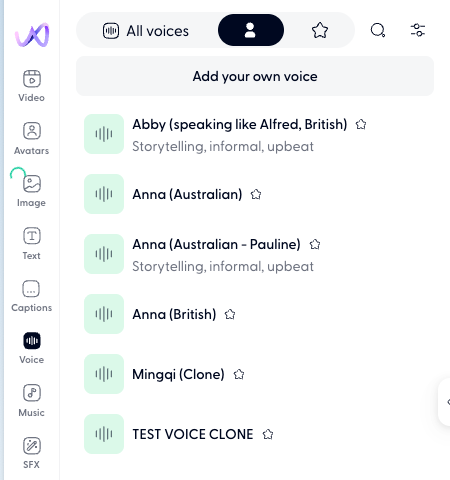
You can find voice clones under the Voice tab.
Import a Professional Voice Clone (PVC)
If you want a high quality voice clone that captures your tone, emotion, pace and accent perfectly, you should consider getting a Professional Voice Clone (PVC).
See 📄 Create a Professional Voice Clone (PVC) for details.
Open the Voice tab in the left panel.
Click Add your own voice.
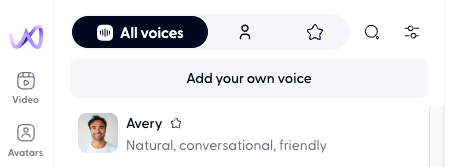
Select Import PVC.
Follow the prompts to upload or connect your PVC file.
Generate an AI voice by prompting
You can create an AI voice in the style, tone, accent and pace you want from scratch.
Open the Voice tab in the left panel.
Click Add your own voice.
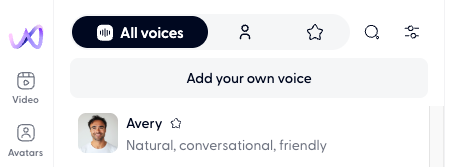
Select Design.
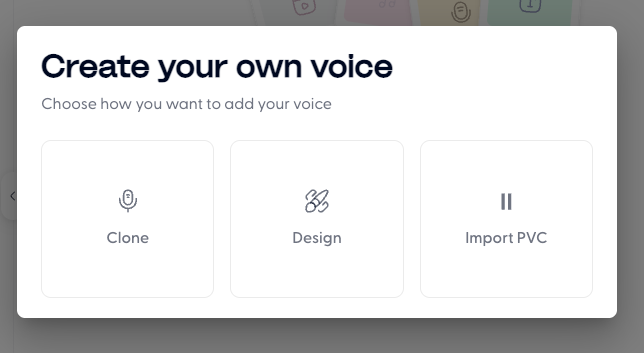
Describe the voice you want: accent, gender, age range, tone, pace, and personality traits. For example: "A warm British female voice in her 40s, calm and authoritative, with a measured pace."
Preview the generated voice and iterate on your description if needed.
Save the voice to your library.
Create a variation of an AI voice (different accent, tone etc)
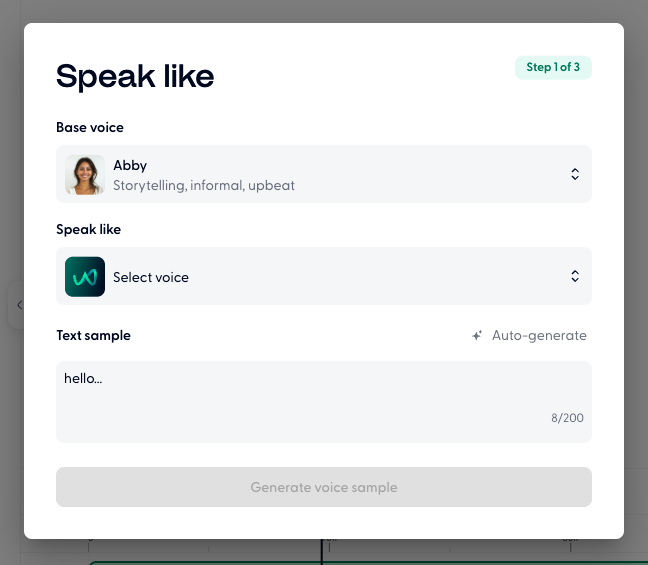
Speak like copies the intonation, pace, and accent of one voice and applies it to another. Use it when you want Voice A to deliver content the way Voice B sounds - transferring a specific delivery style or accent to a different base voice.
Select a speech clip on the timeline.
Under the Voice section, click Create new.
Select Speak like.
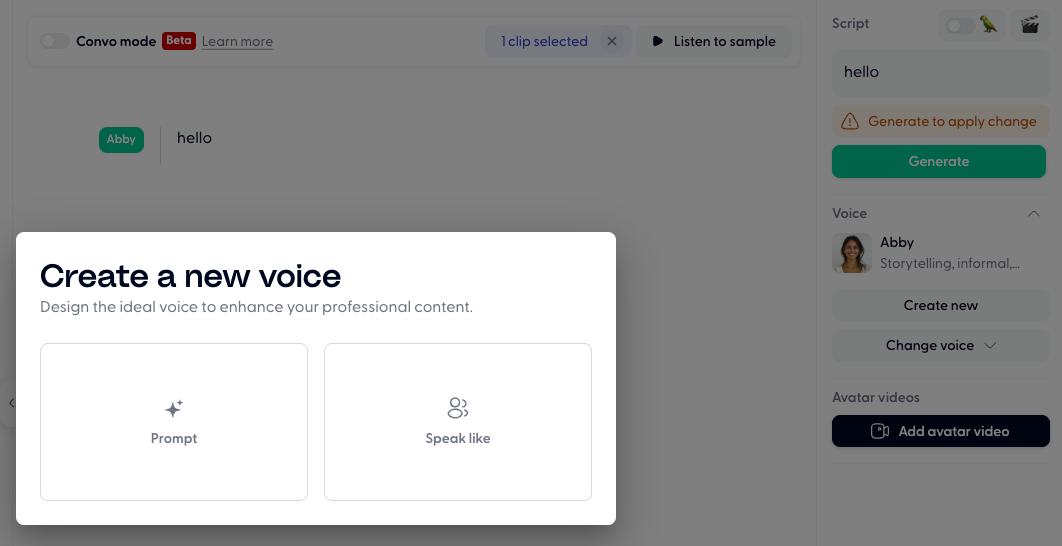
Choose a reference voice whose style you want to transfer.
Preview the result and save.
Voice creation best practices
Using Your Cloned Voice in Different Modes
Important: If you clone a voice with a non‑American accent (such as British English), be aware that Convo Mode only supports American English by default. Even if you select a British cloned voice, the speakers will speak in American English when using Convo Mode.
To ensure your cloned voice maintains its original accent:
Use Standard Mode – Your cloned voice will maintain its original accent without any additional configuration.
Use Convo Mode with accent prompts – Add specific instructions in the Delivery Instructions box (top center) to specify the accent. For example, include “Speaker 1: speaks with a very strong British accent” in your delivery instructions.
Note that results in Convo Mode may vary depending on your content length, the voices chosen, and the specific prompts used.
Recording the audio sample for your AI voice clone
For the AI to capture your voice accurately, follow the best practices when recording your audio clip used on Wondercraft.
Pace | Speak at the pace you want the AI to mimic, and keep it consistently fast/slow throughout the audio clip. |
Tone | You need to be extremely expressive. When the AI clones your voice, it dampens the expressivity. So you need to overdo it so that after the cloning process, it is at a good level. So try to cover all the spectrum between enthusiastic and sad and please over do it, to a funny level. |
Quality | Clear, no noise of any kind. Use the best microphone you have to minimize any audio interference. |
Length | Aim for 30 seconds of audio |
File Type | MP3, M4A, WAV, AAC, FLAC |
File Size | No more than 10MB |
Volume | Try to record loudly. Aim for 18db so that it is equalised with Wondercraft voices. |
Script language | Read a script in the language that your clone will be speaking. If your clone will be speaking French, record the audio clip in French. |
Improving the quality of your AI voice clone
If your cloned voice sounds robotic, flat, or otherwise unnatural, the issue is almost always with the source audio. The cloning model learns from what you give it, so higher-quality input produces a more realistic result.
To improve the quality of your voice clone, make sure:
You have followed the best practices outlined in the "Recording the audio sample for your AI voice clone" section.
You read the source script in an emotional tone. Make it even more dramatic/emotional than what is natural in day-to-day speech. If you read in a flat tone, the clone will sound flat too.
Your source audio doesn't have any background noise or echo, otherwise the ambient sound in the recording will be baked into the voice clone.
Your recording is between 30 seconds and 1 minute, otherwise the model would have less than what's needed to work with.