How do I upload and edit a NotebookLM file?
Last updated: August 6, 2026
1. Get started by uploading your NotebookLM file
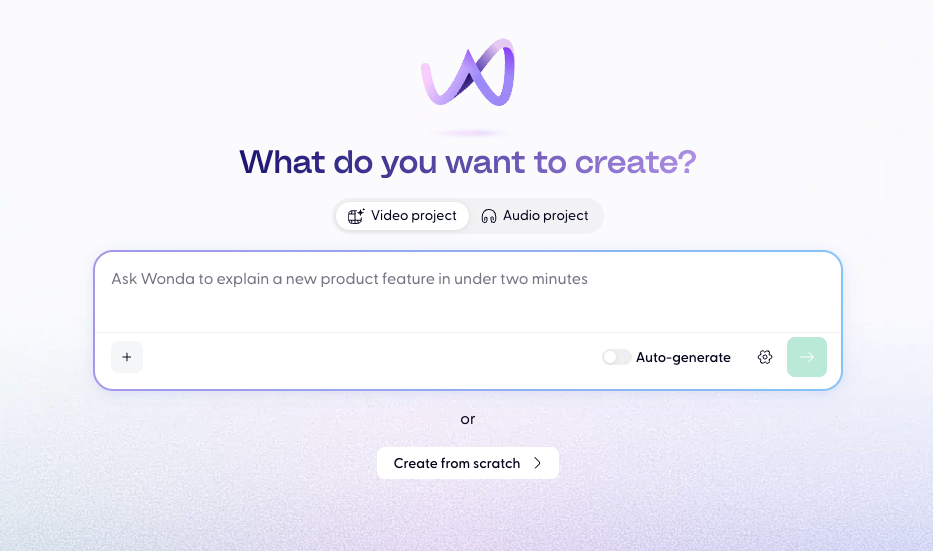
From the homepage press on Create from scratch in the top right corner.
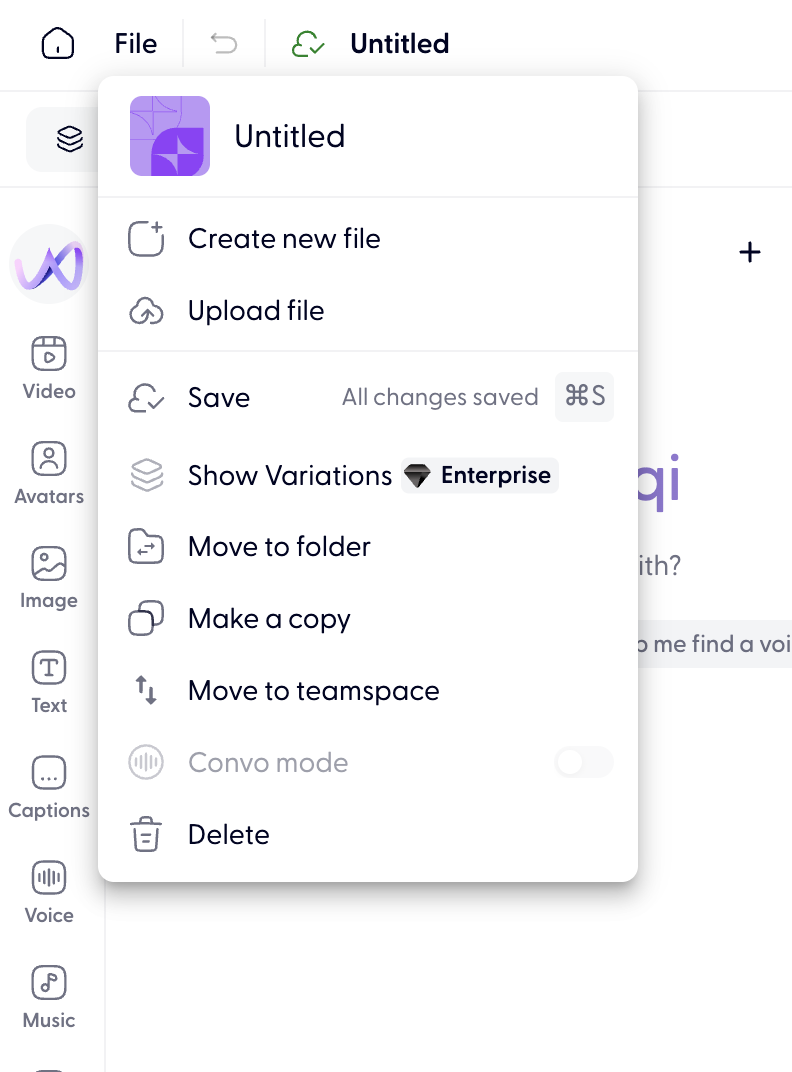
From the editor, press on File in the top left corner > Upload file.
Select the NotebookLM file to upload.
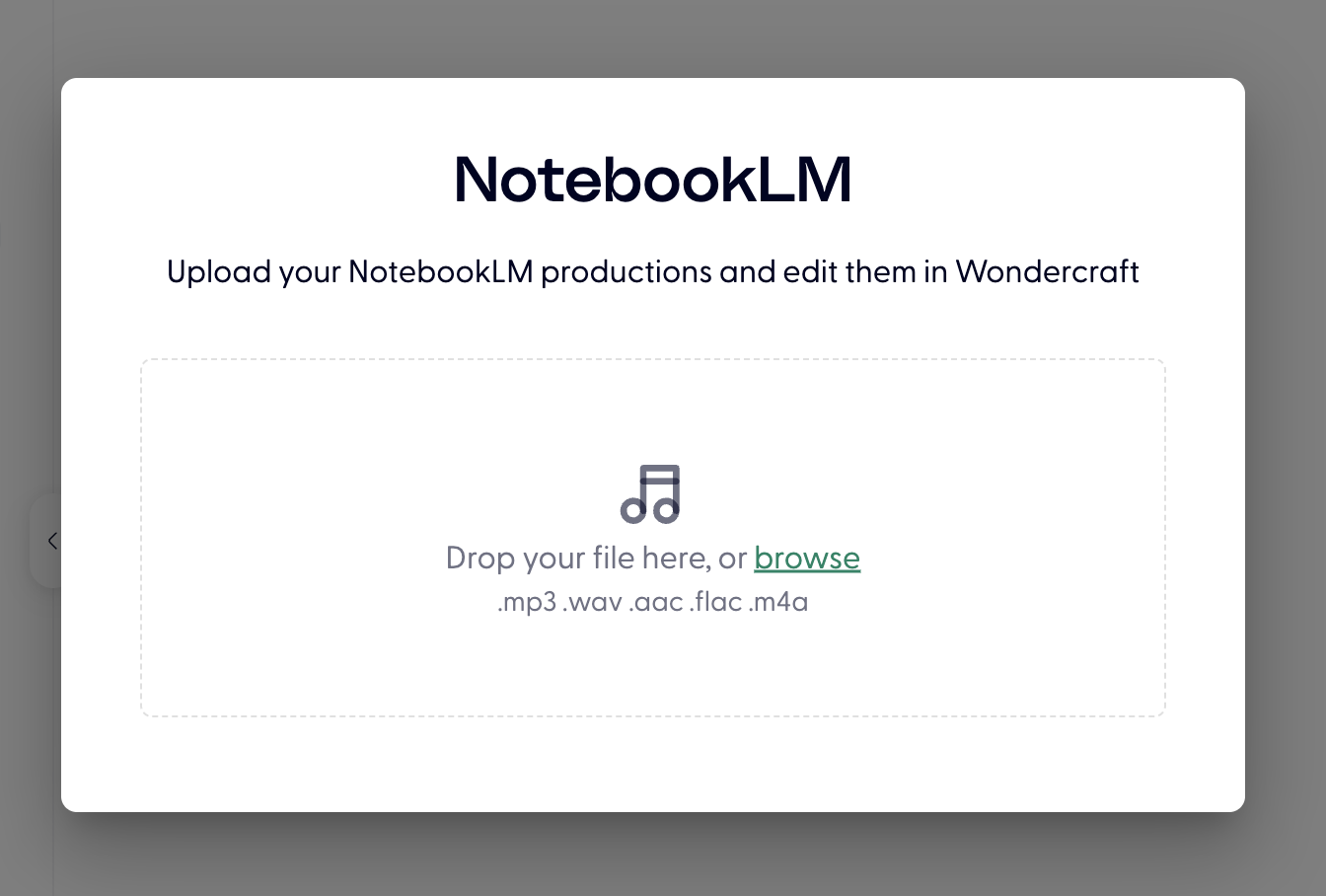
Note: Your NotebookLM file must be less than 60 minutes in duration to successfully upload onto Wondercraft.
2. Edit your NotebookLM
Edit the text:
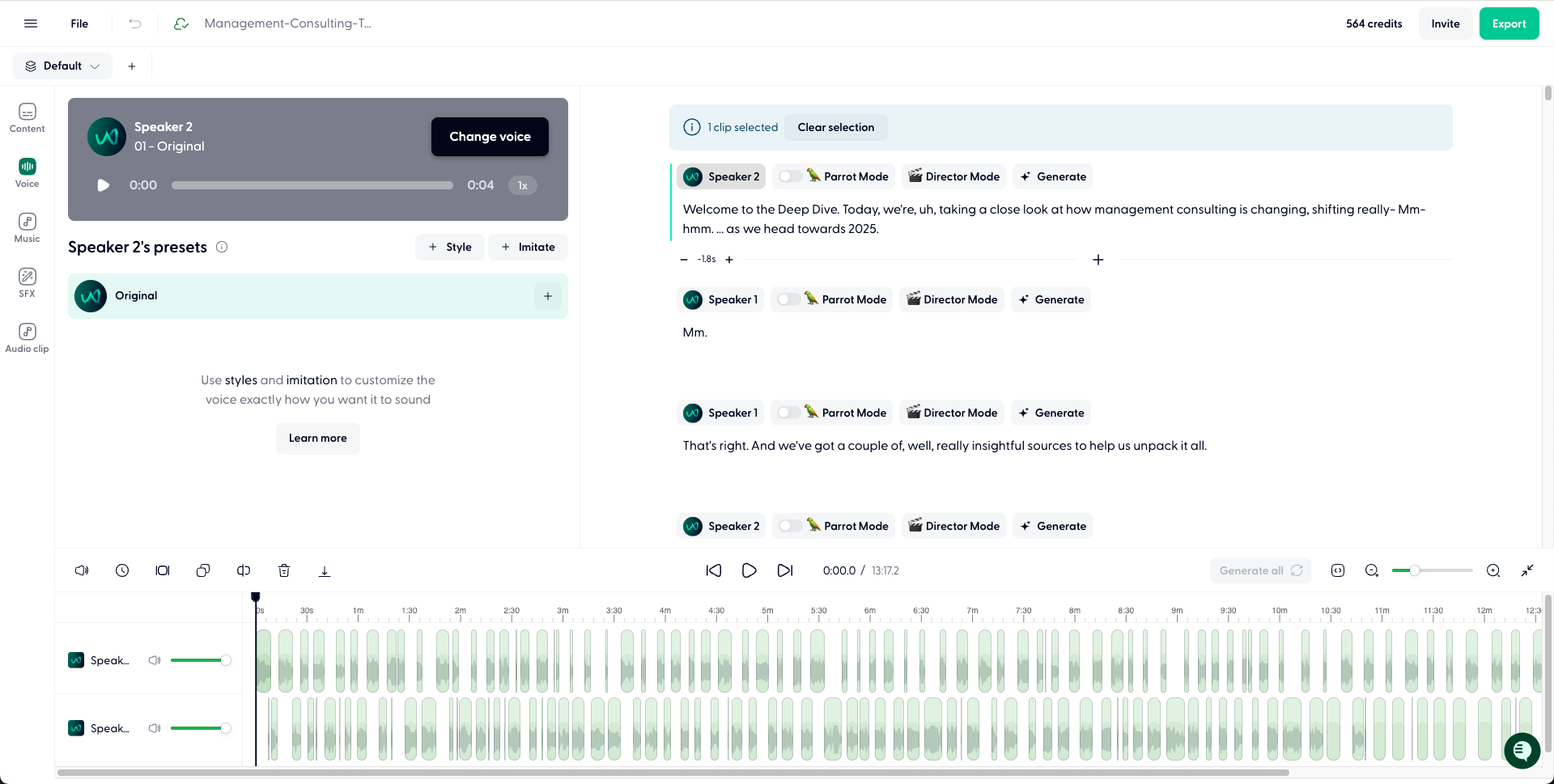
Unlike NotebookLM, you can directly edit any of the text in your script. To do this, navigate to the right hand side of the editor and delete / edit / change any of the text.
A common example is to change the name of the podcast, or remove any specific sentences that you didn't like.
Press on Generate or Generate All to update the audio with the new text.
Change the voices:
Once you're happy with the script, you can then either keep the voices of the two speakers as is, or swap them for others. Several users prefer to change the voices as the default NotebookLM voices are widely known and recognizable.
To do this, just click on the Speaker 1 or Speaker 2 (whoever you want to change), then click on Change voice. You'll then see a library of voices which you can try out and select.
To find voices that fit well in a NotebookLM style podcast, you can filter for voices by looking up "Google Gemini tts", and choosing one of those.
Note: We keep the cloned voices (Speakers 1 & 2) from NotebookLM imports for 2 weeks after the audio file is imported. These cloned voices are available within the same Wondercraft file only.
Change how the voices sound:
Once you're satisfied with the script and voices of the speakers, you can then control how each and every clip or sentence sounds.
To do this you can use the Parrot or Director Mode features (available to Pro users only) on each clip.
📄 Director Mode 🎬 - User Guide

Note: When you generate audio, you might notice the voice of the speakers differs slightly to the original NotebookLM voices even if you haven't changed their voice. Wondercraft automatically clones the voices of the NotebookLM speakers upon upload so while it tries to mimic the speakers' voices, it is not a perfect 100% match.
3. Export your finished track
Before exporting, ensure all clips in your project have been generated. If any clips show as ungenerated, click Generate All to complete them.
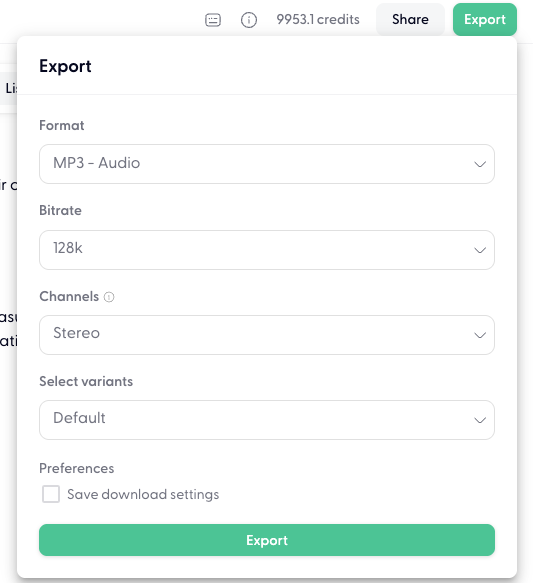
When you're happy with your podcast, hit "Export" on the top-right of the screen and choose one of the options provided.
Note: Downloading your audio file does not consume any credits.